How to Allocate Payments Across Multiple Shipments
Allocate one Party receipt across two shipment invoices, preview the split and verify both balances.
- ForFinance users with Company-wide view and write access who allocate buyer receipts across shipment invoices
- Task timeAbout 3 min
- Video2:45
- Last checked2026-10-23
Overview
Record a buyer receipt as Party advance (unallocated), then use Change allocations to apply it to two shipment invoices for the same Party. This example allocates 90,000 US dollars from Harbourline Foods B.V.: 60,000 to TAE-2026-016 and 30,000 to TAE-2026-012. Check both allocations and the shipment and Party balances after saving. Recording a receipt in Shiplete does not move money.
What you'll learn
- Record the full receipt as Party advance (unallocated)
- Find the receipt in the Party Ledger and open Change allocations
- Use Manual amounts to allocate the receipt across two invoices
- Preview Applied, Unallocated and remaining invoice balances
- Verify both Active allocations and each shipment’s receipt share
Before you begin
- Company-wide Finance view and write authority; a grant for one shipment alone does not provide this Party-wide workflow.
- Two eligible open buyer invoices on different shipments for the same Party and Finance side, in the same currency for this example. Enter Shipment Setup
- Know how to record a buyer Receipt, or have an existing unallocated Party receipt to open. How to Record a Payment Received
- Know how to open the Party Ledger and switch between Shipment View and Transaction View. How to Use the Party Ledger
Step-by-step guide
Record the full receipt against the Party
Use an account with Company-wide Finance view and write access. Both target invoices must belong to the same Party and Finance side; this example uses two buyer invoices in US dollars. From Payments, select + to open Record transaction, then choose Receipt. Select Own Company and Party, and set Apply to to Party advance (unallocated). Enter Date, Currency, the full Amount, Reference and Note, then select Record transaction. Here, Tarnwick Agro Exports Pvt. Ltd. records 90,000 US dollars from Harbourline Foods B.V., dated 23 Oct 2026, with reference HFB-BATCH-1023. This records a receipt in Shiplete; it does not move money. Start from Payments: a receipt form opened from a shipment is restricted to that shipment.
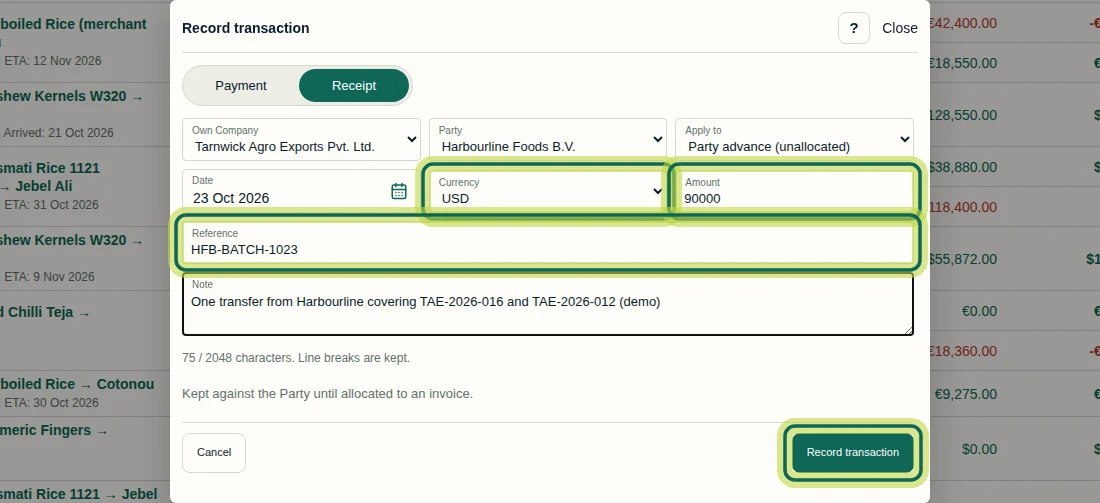
Step 1 Find the receipt and choose Change allocations
From Payments, select the Harbourline Foods B.V. Party link to open its Party Ledger. After recording, Unallocated receipt is 90,000 US dollars; shipment balances and Receivable stay unchanged until allocation. Select Transaction View, then open HFB-BATCH-1023. The receipt detail shows No allocations. and Party advance (unallocated) of 90,000 US dollars. Select Change allocations. If you already recorded the receipt, open that existing entry rather than recording it again.
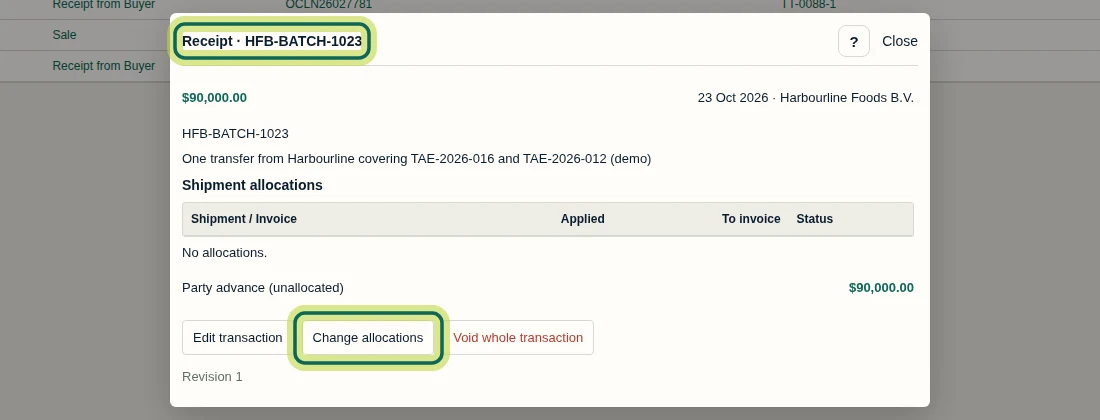
Step 2 Apply part of the receipt to the first invoice
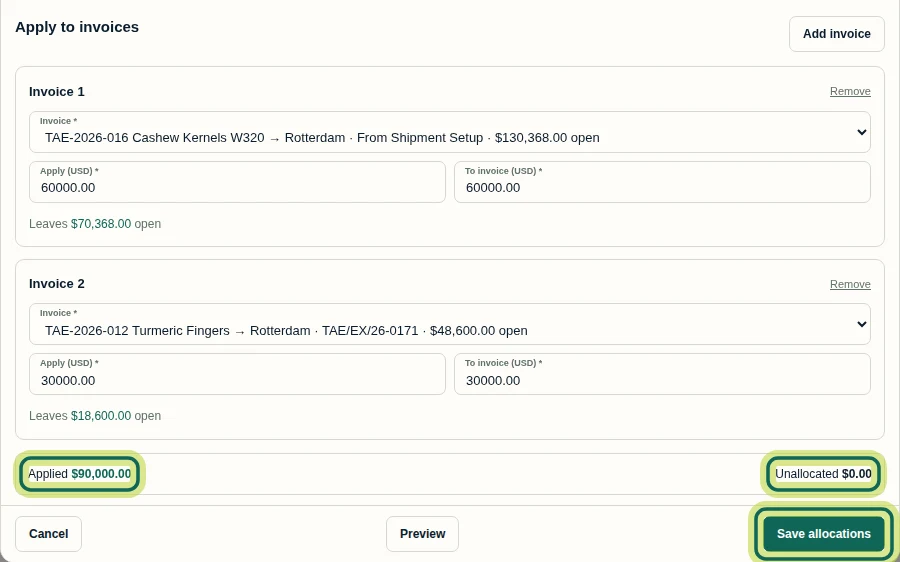
In Edit receipt allocations, use Manual amounts. Under Apply to invoices, check the selected Invoice carefully; the initial selection may need changing. For Invoice 1, select TAE-2026-016 Cashew Kernels W320, identified by From Shipment Setup and 130,368 US dollars open. Enter 60000 in Apply (US dollars) and check 60000 in To invoice (US dollars). This example uses the same currency for the receipt and both invoices. Select Add invoice for the second shipment.
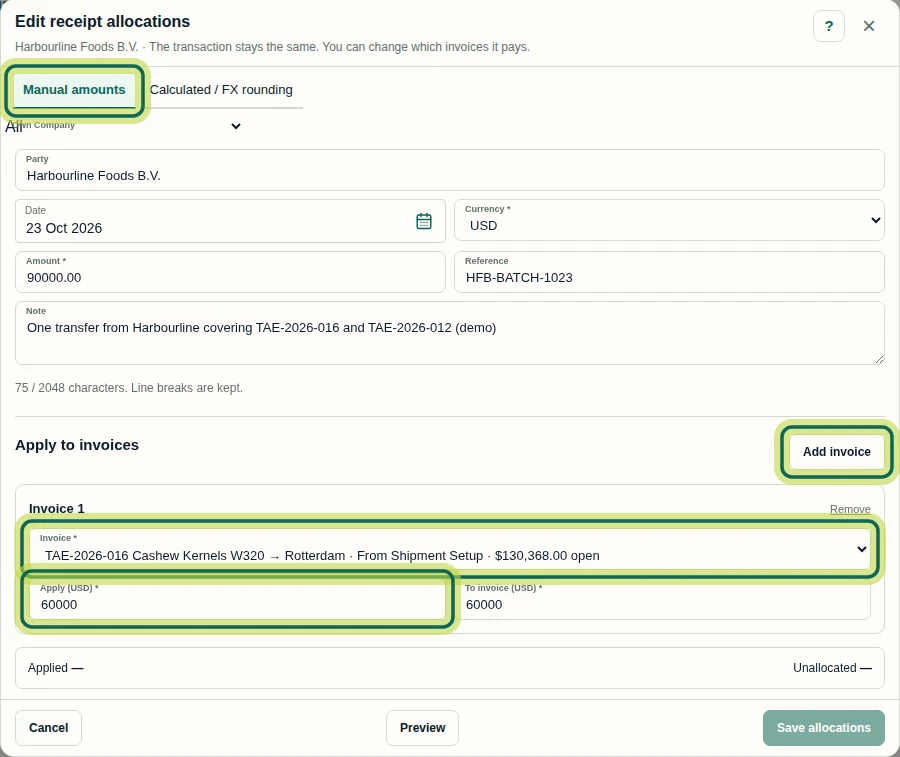
Step 3 Add the second shipment’s invoice
For Invoice 2, select TAE-2026-012 Turmeric Fingers, invoice TAE/EX/26-0171, showing 48,600 US dollars open. Enter 30000 in Apply (US dollars) and check 30000 in To invoice (US dollars). Keep the first invoice’s 60,000 US dollar allocation. Together, these allocations use the full 90,000 US dollar receipt. Select invoices for the same Party and Finance side; a similar Party name alone is not enough.
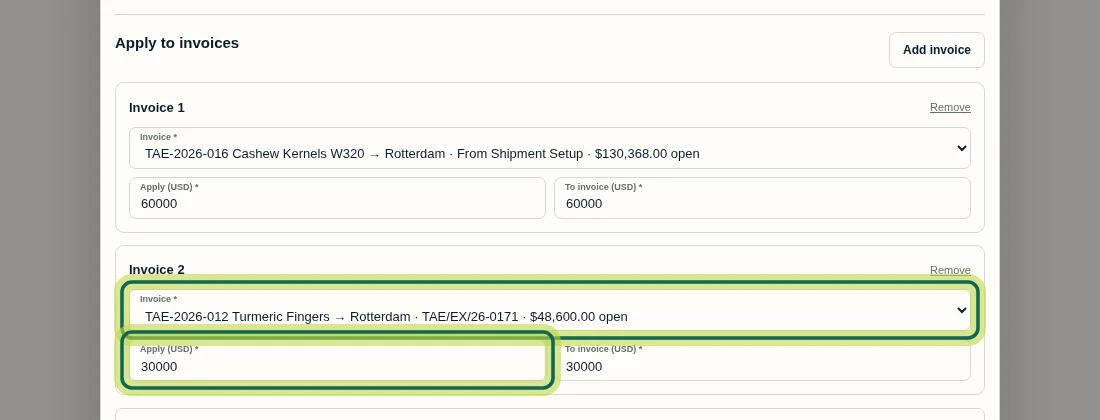
Step 4 Preview the split and save allocations
Select Preview. For TAE-2026-016, check Leaves 70,368.00 US dollars open; for TAE-2026-012, check Leaves 18,600.00 US dollars open. These are US dollar balances. Check Applied is 90,000 US dollars and Unallocated is zero US dollars, then select Save allocations. Allocations cannot exceed the receipt total. An invoice’s open amount can limit what is applied, leaving some receipt money unallocated; always check the preview totals.
Step 5 Confirm both allocations on the single receipt
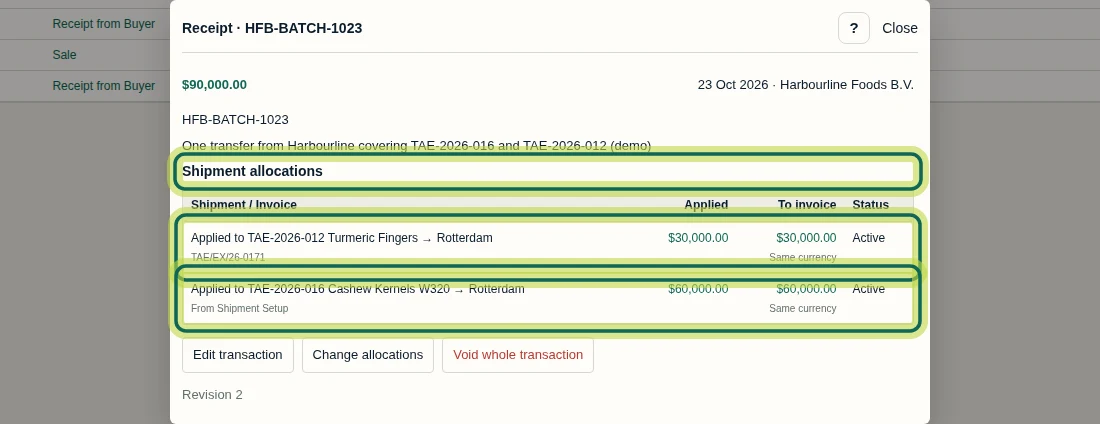
After saving, reopen HFB-BATCH-1023 in Transaction View. Under Shipment allocations, confirm two Active rows: 30,000 US dollars applied to TAE-2026-012 and 60,000 US dollars applied to TAE-2026-016. The receipt total remains 90,000 US dollars and the detail shows Revision 2. One receipt now has two invoice allocations, with payment history retained.
Step 6 Check both shipment balances and the Party total
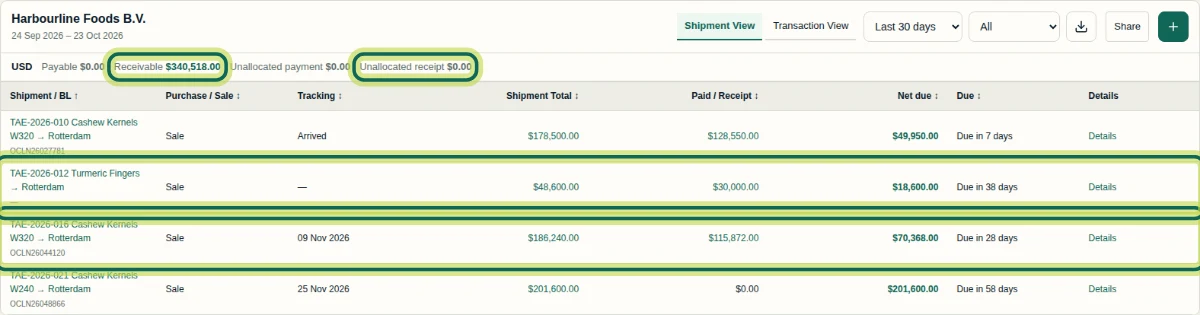
In the Party Ledger, select Shipment View. For TAE-2026-016, check Paid / Receipt of 115,872 US dollars and Net due of 70,368 US dollars. For TAE-2026-012, check Paid / Receipt of 30,000 US dollars and Net due of 18,600 US dollars. Receivable is now 340,518 US dollars and Unallocated receipt is zero US dollars. This Party total also includes two other shipments. From Payments, open each target shipment’s Shipment Ledger and check Transaction history: HFB-BATCH-1023 should show only that shipment’s share, 60,000 or 30,000 US dollars, with the matching Invoice outstanding balance. Next, continue with Understanding Invoices and Payment Status.
Step 7
Expected result
One receipt of 90,000 US dollars has two Active allocations: 60,000 to TAE-2026-016 and 30,000 to TAE-2026-012. Their remaining balances are 70,368 and 18,600 US dollars. Harbourline’s Receivable is 340,518 US dollars, including other shipments, and Unallocated receipt is zero US dollars.
Common issues
- Change allocations is not available in the receipt detail.
- Check that your account has Company-wide Finance view and write authority. View-only users can inspect allocations but do not see Change allocations; access to one shipment alone does not establish Party-wide authority.
- The receipt form only offers invoices from one shipment.
- A receipt form opened from a shipment is restricted to that shipment. Start from Payments to record Party advance (unallocated), then open the existing receipt in the Party Ledger and choose Change allocations.
- Preview leaves an Unallocated amount after invoice amounts are entered.
- Check the selected invoices, their open amounts and the Applied total. Invoice capacity can limit the amount applied, leaving a Party advance. Allocations cannot exceed the receipt total; preview the amounts before saving.
Next tutorial
Was this helpful?
If something did not work as described, tell us and we will help.