Enter Shipment Setup
Record the parties, goods, terms and expected documents for a shipment.
- ForShipment users allowed to edit Setup
- Task timeAbout 4 min
- Video1:08
- Last checked2026-10-22
Overview
Setup records what reviewers should expect. Its expected-document choices decide which document types you can upload. Setup does not approve extracted fields.
What you'll learn
- Open Setup and its tabs
- Choose your Own Company and parties from Masters
- Choose the expected documents
- Save and reopen
Before you begin
- A shipment you can edit Create Your First Shipment
- Your Own Company and counterparties in Party Master
Step-by-step guide
Open Setup
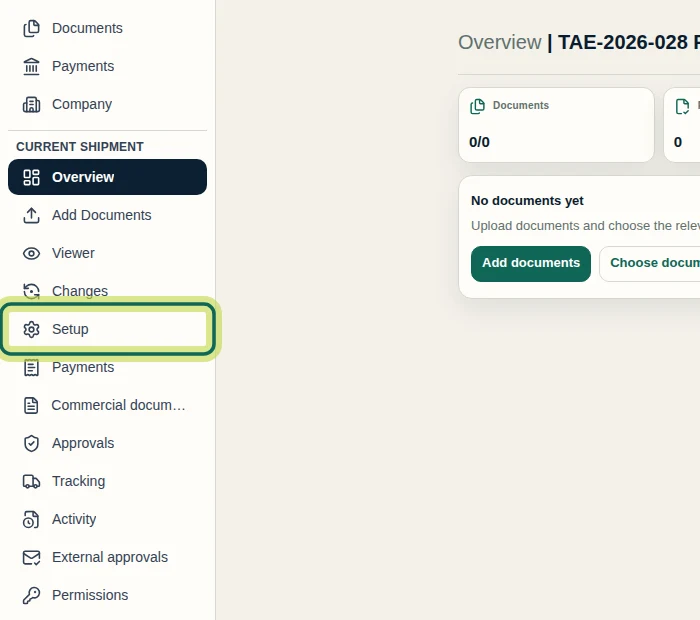
Open the shipment and select Setup in the shipment menu. The Setup card on the Overview shows how much is complete.
Step 1 Fill in the Shipment tab
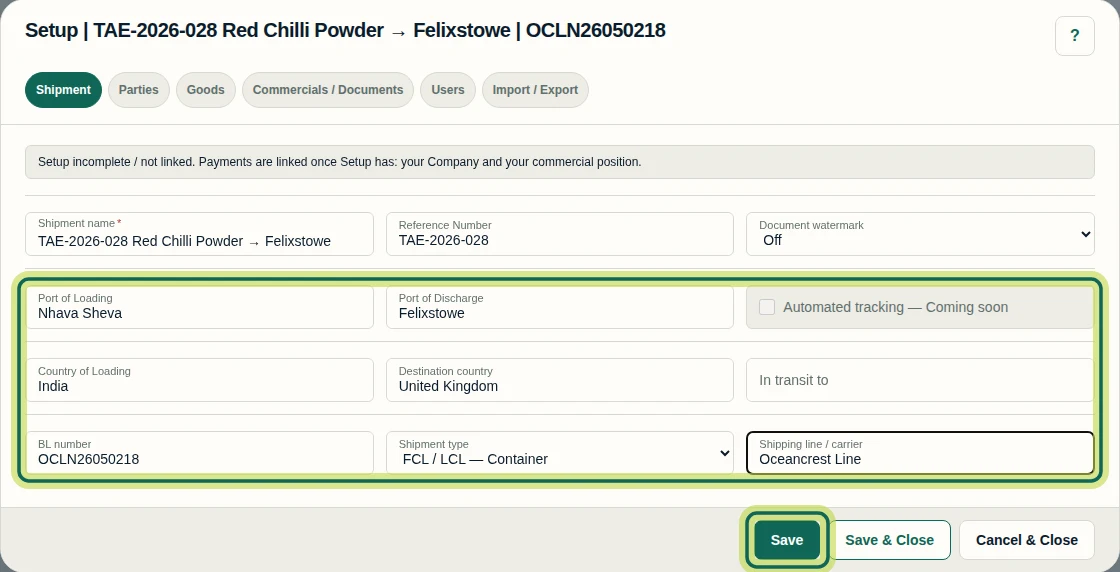
On Shipment, enter the ports of loading and discharge, the countries, the bill of lading number, the shipment type and the shipping line, then select Save. You can save after each tab and keep working.
Step 2 Choose your Own Company
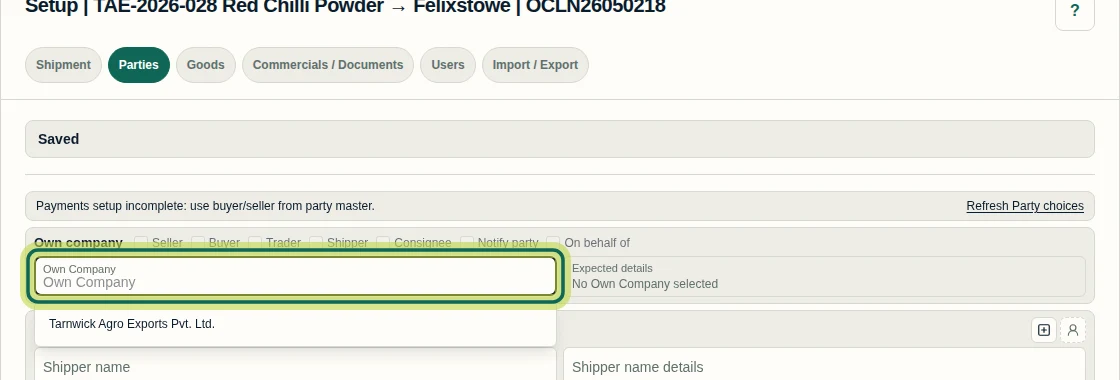
On Parties, pick your Own Company from the list. Parties come from your Party Master, with their addresses filled in for you.
Step 3 Set roles and the other parties
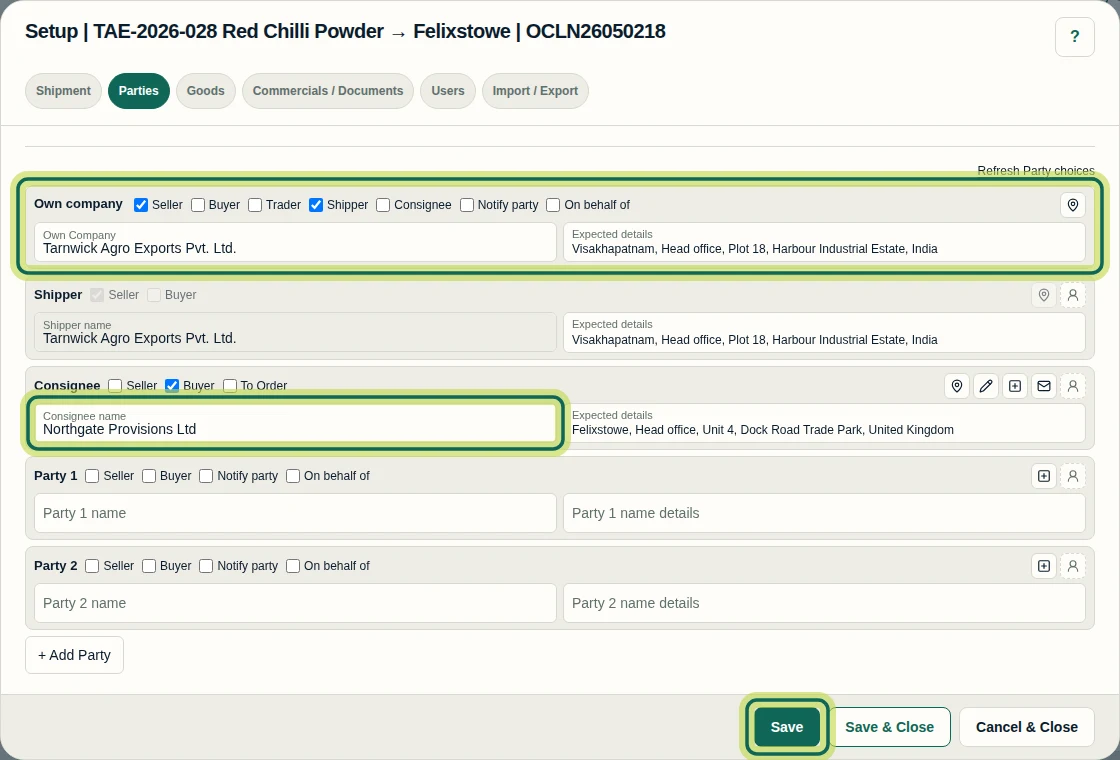
Tick your Company's roles, such as Seller and Shipper, choose the Consignee and mark who is the Buyer, then select Save. Payments are linked once Setup has your Company and its commercial position.
Step 4 Add commercial terms
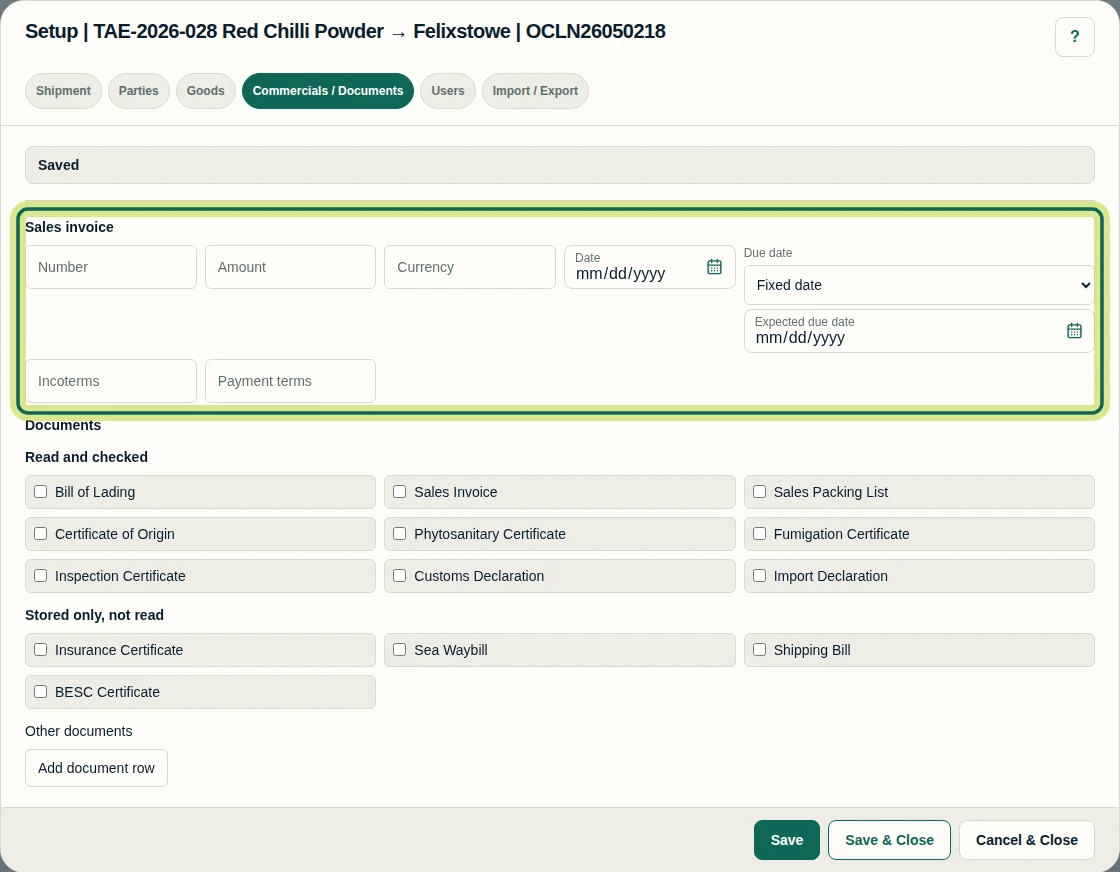
Commercials / Documents holds the sales invoice details, Incoterms, payment terms and the documents you expect. Fill in what you know now; you can come back at any time.
Step 5 Check your progress
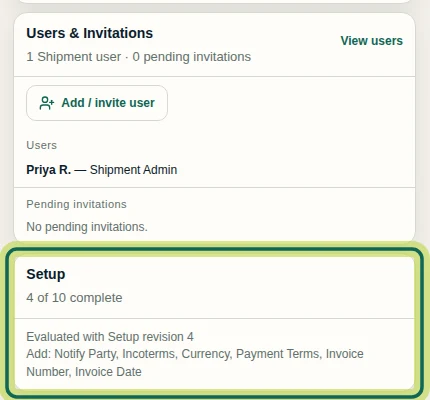
After Save & Close, the Setup card shows your progress and lists what is still missing.
Step 6
Expected result
Reopening Setup shows the saved values, and Add Documents offers the expected document types.
Next tutorial
Was this helpful?
If something did not work as described, tell us and we will help.