Introduction to Document Generation
Prepare contracts, invoices and packing lists in Shiplete, then preview and download them.
- ForUsers allowed to prepare commercial documents
- Task timeAbout 4 min
- Video1:19
- Last checked2026-10-22
Overview
Commercial documents are documents you prepare in Shiplete, separate from the documents you upload. Nothing is charged until you create a document; each document is charged once, when it is first saved or previewed.
What you'll learn
- The document types you can prepare
- The ways to start a document
- When a document is saved
- Preview and download
Before you begin
- A Company with permission to prepare documents
Step-by-step guide
Open Commercial documents
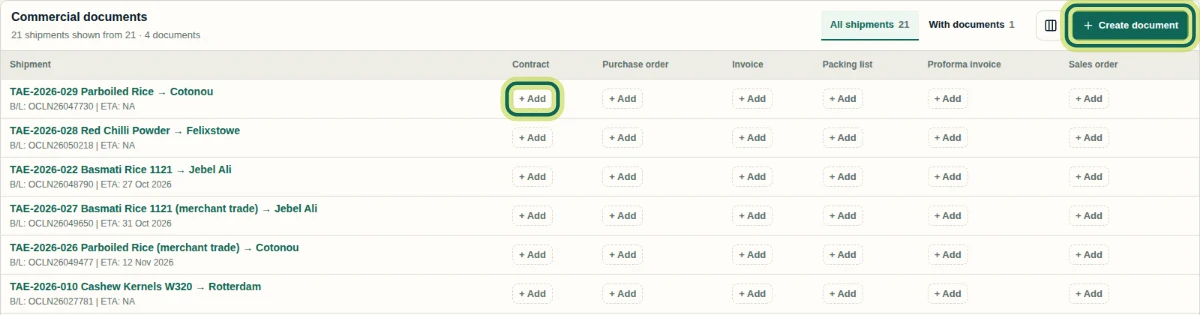
Select Documents in the side menu. Each shipment has a row and each document type has a column: Contract, Purchase order, Invoice, Packing list, Proforma invoice and Sales order. Select + Add in a cell to start that document for that shipment, or select Create document.
Step 1 Find existing documents
With documents shows only the shipments that already have documents. Select a document to open it.

Step 2 Choose how to start
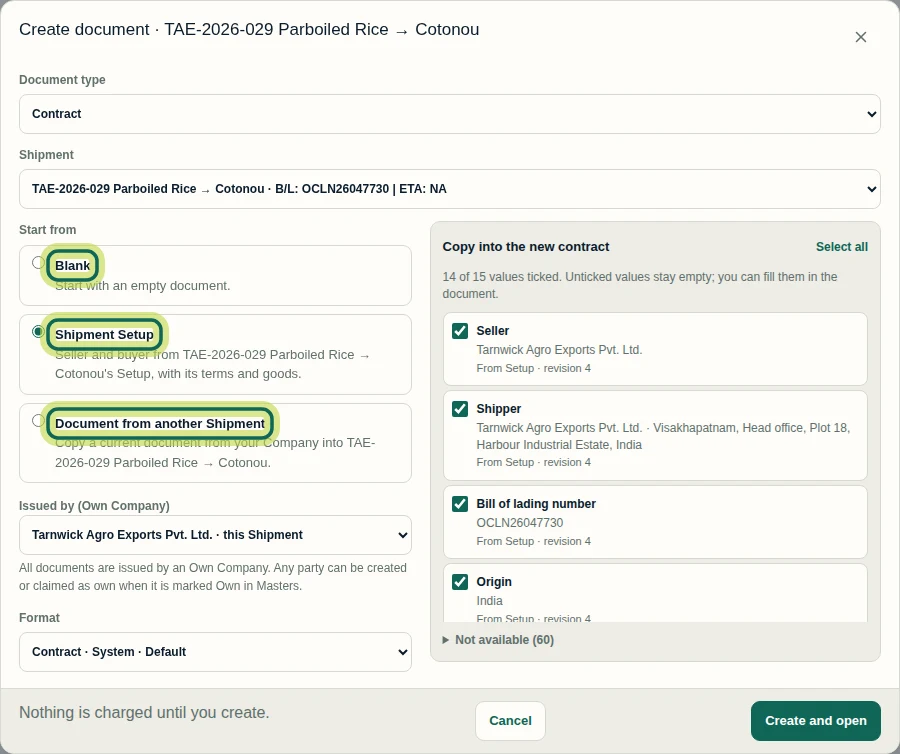
In Create document choose the Document type and the Shipment, then Start from: Blank, Shipment Setup or Document from another Shipment. Check Issued by (Own Company) and Format. Nothing is charged until you create.
Step 3 Edit on the page
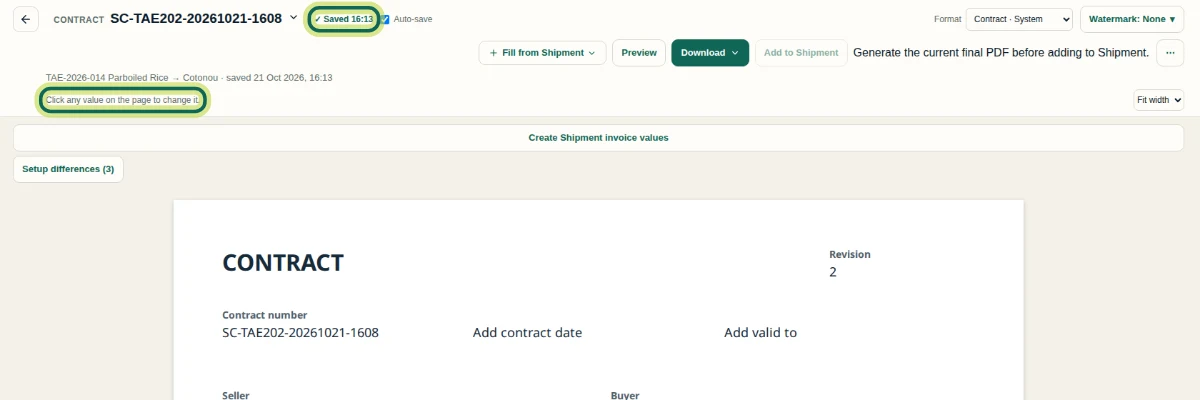
The document opens on a large page. Click any value on the page to change it. Changes save automatically while Auto-save is on.
Step 4 Preview and download
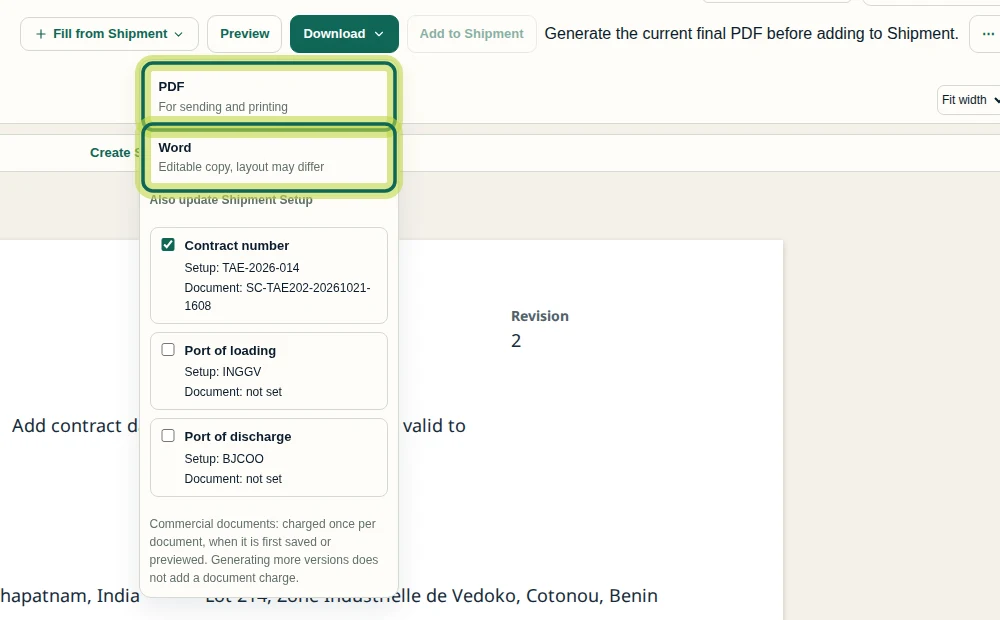
Select Preview to check the layout, then Download: PDF for sending and printing, or Word for an editable copy. A document is charged once, when it is first saved or previewed; more versions do not add a charge.
Step 5
Expected result
You know how to start, save, preview and download a commercial document.
Next tutorial
Was this helpful?
If something did not work as described, tell us and we will help.