Create Your First Contract
Create a Contract from a shipment's Setup, edit it and download it as a PDF.
- ForUsers allowed to prepare commercial documents
- Task timeAbout 4 min
- Video1:03
- Last checked2026-10-22
Overview
A Contract can start from the shipment's Setup values, a blank page or another document.
What you'll learn
- Choose the Contract type and start
- Create and open it
- Edit and save changes
- Preview and download a PDF
Before you begin
- Introduction to Document Generation Introduction to Document Generation
- An Own Company in Party Master to issue the Contract
Step-by-step guide
Start a Contract
In Commercial documents select + Add in the Contract column for your shipment (or Create document, then Contract). Choose Start from Shipment Setup, then check Issued by (Own Company) and Format.
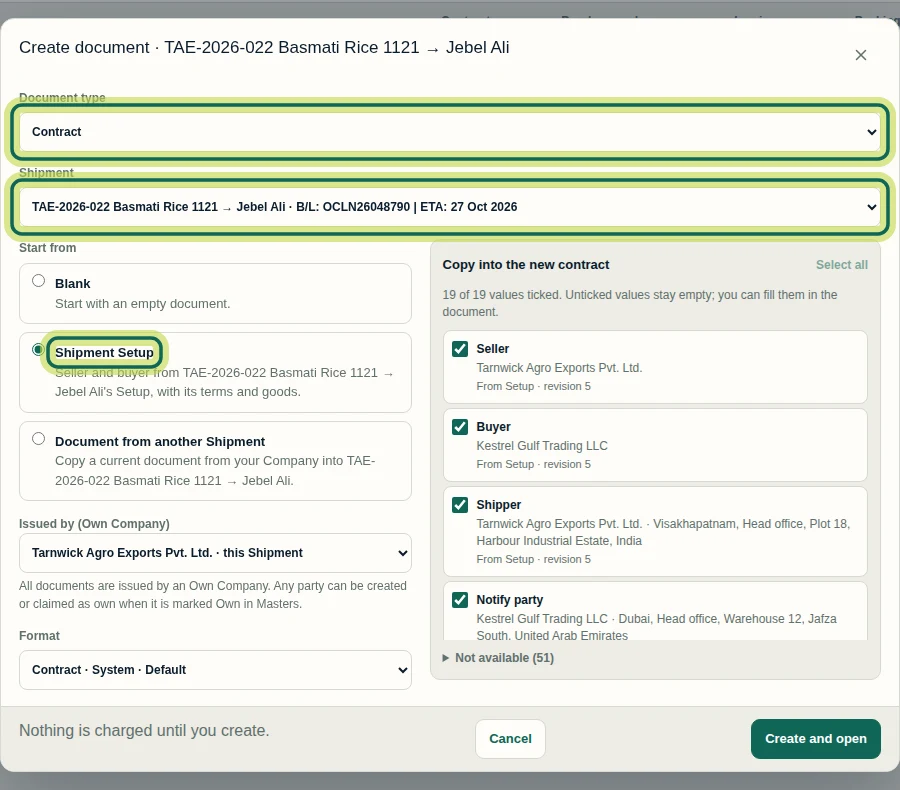
Step 1 Choose the values to copy
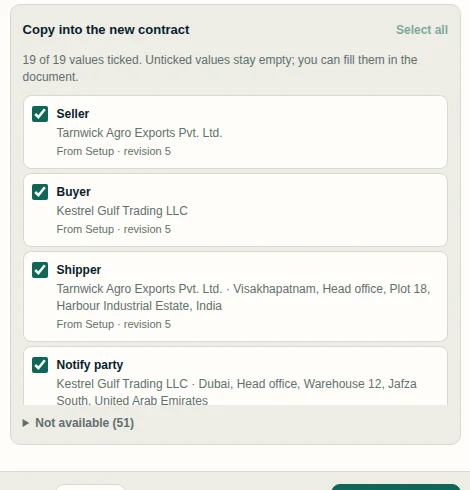
Tick the Setup values to copy into the contract. Unticked values stay empty; you can fill them in the document.
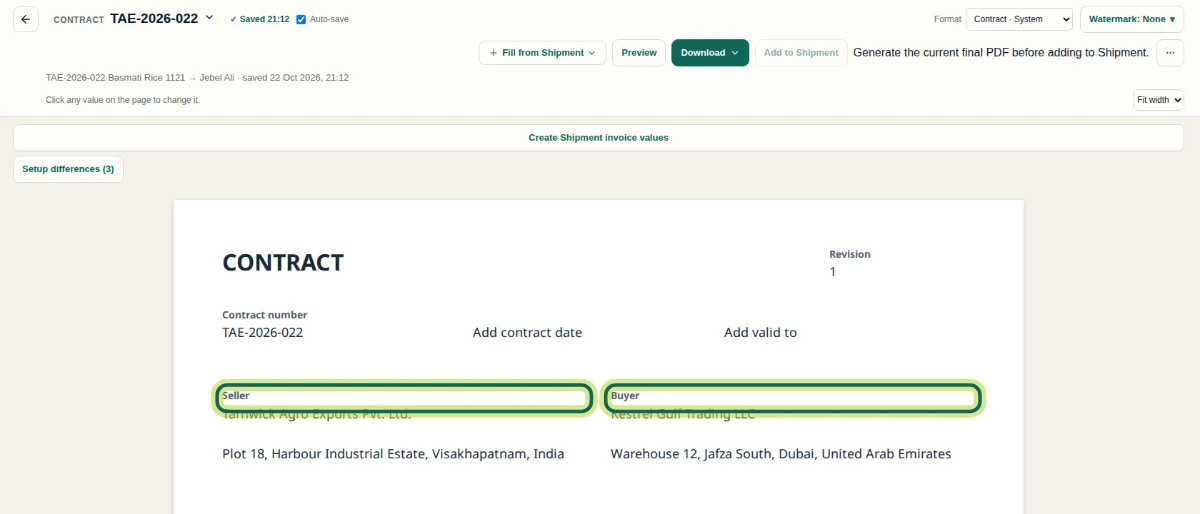
Step 2 Create and open
Select Create and open. The Contract opens with the shipment's Setup values and is saved.
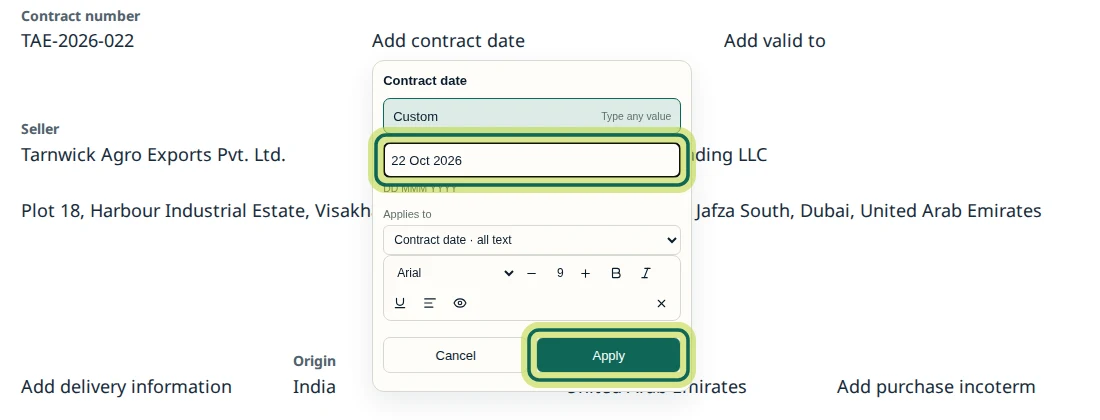
Step 3 Change a value
Click a value on the page to change it, for example Add contract date. Type the date and select Apply; the change saves straight away.
Step 4 Preview and download
Select Preview to check the layout, then Download and PDF. Earlier files stay available in History.
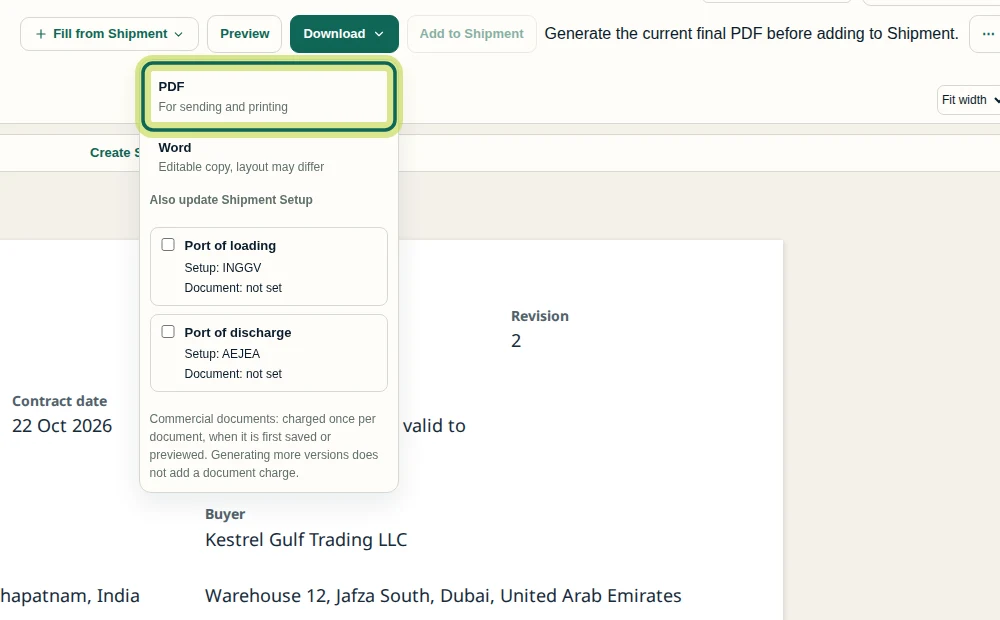
Step 5
Expected result
The Contract is saved and you have its PDF.
Next tutorial
Was this helpful?
If something did not work as described, tell us and we will help.