Understand Shipment Overview
Read a shipment's Overview: documents, fields needing attention, people and progress.
- ForEveryone who works on a shipment
- Task timeAbout 4 min
- Video1:09
- Last checked2026-10-22
Overview
Overview is the home page of a shipment. Each section shows what you are allowed to see, and works with incomplete Setup.
What you'll learn
- The sections of Overview
- Document and field status
- Users & Invitations
- Where to go next
Before you begin
- Access to a shipment Understand the Shipment Hub
Step-by-step guide
Read the status cards
At the top are the shipment's name and bill of lading number. The cards show Documents (have / expected), Ready to approve, Fields Requiring Attention, Tracking Status, Payment Status and Operational Status. Select a card to open its list.

Step 1 Check the documents
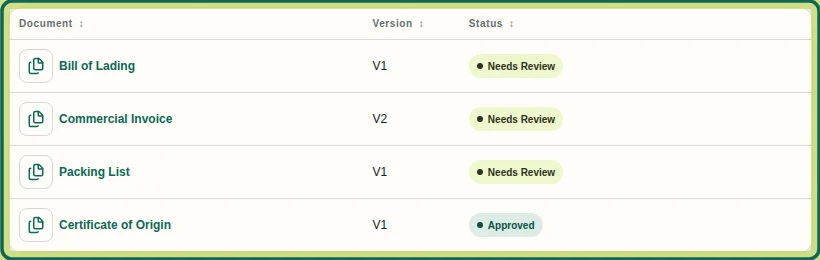
The document list shows each document's current Version and review Status. Select a document to open it in the Viewer.
Step 2 Notifications and Activity
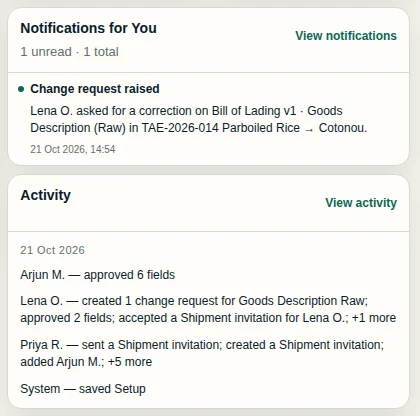
Notifications for You lists what needs you; Activity shows who did what and when. Select View activity for the full history, with filters and Download Excel report / Download PDF report.
Step 3 People and Setup
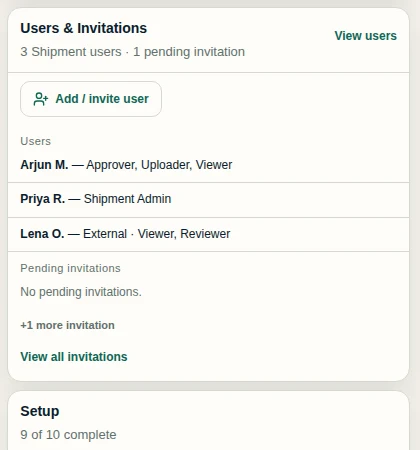
Users & Invitations shows who has access and offers Add / invite user. The Setup card shows how complete the shipment's details are. Every other area is in the shipment menu.
Step 4
Expected result
You can tell what needs attention on a shipment and open the right screen for it.
Choose what to do next
Was this helpful?
If something did not work as described, tell us and we will help.