Review Extracted Document Fields
Check extracted values against their source and record your decision.
- ForReviewers and approvers
- Task timeAbout 4 min
- Video1:10
- Last checked2026-10-22
Overview
Extracted values are suggestions until someone with the right access accepts them. A Match is not an approval.
What you'll learn
- Open fields that need attention
- Compare a value with its source
- Keep a value or ask for a correction
- Save your decision
Before you begin
- Uploaded documents with extracted values Upload Shipping Documents
- Permission to review fields
Step-by-step guide
Open Ready to approve
On the shipment's Overview, Ready to approve counts values your documents agree on; Fields Requiring Attention counts values they disagree on. Select Ready to approve.
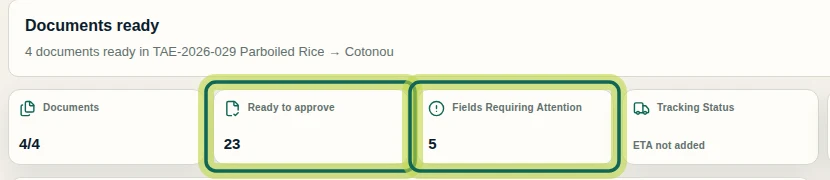
Step 1 Approve correct values
Each row shows a value and the documents it was found in (Found in). If it is right, select the tick to approve it.
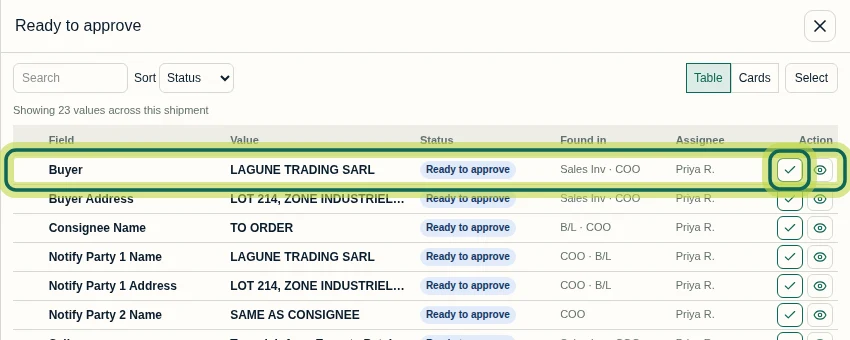
Step 2 Open a value that needs attention
In Fields Requiring Attention, select the review button on a row to see the values your documents disagree on.
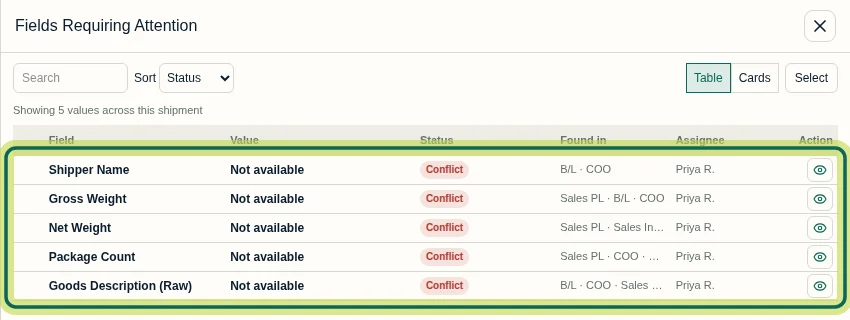
Step 3 Choose the value to keep
Shiplete shows each value and where it was found; use Show on page to check it. Choose the value to keep. For each document that shows something different, choose Request change or Ignore value, then select Save. The field stays open until that document is corrected.
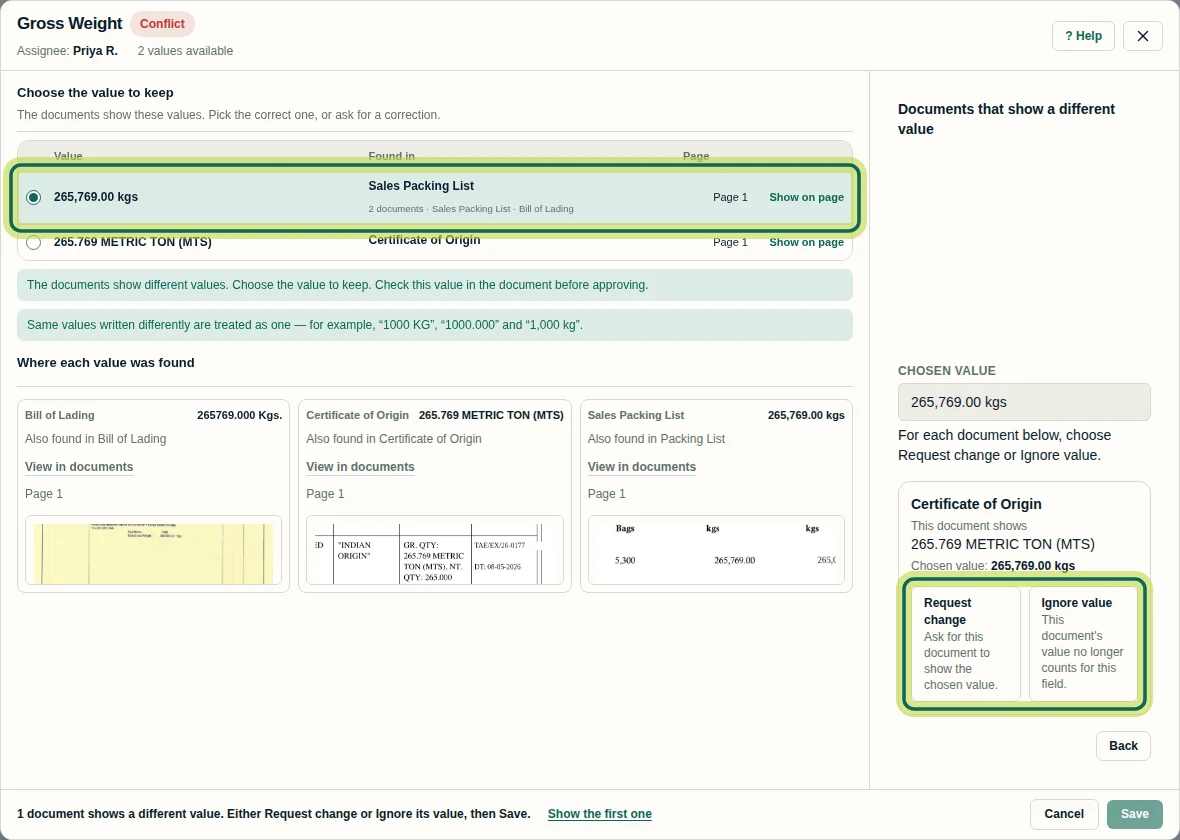
Step 4 Ask for a correction
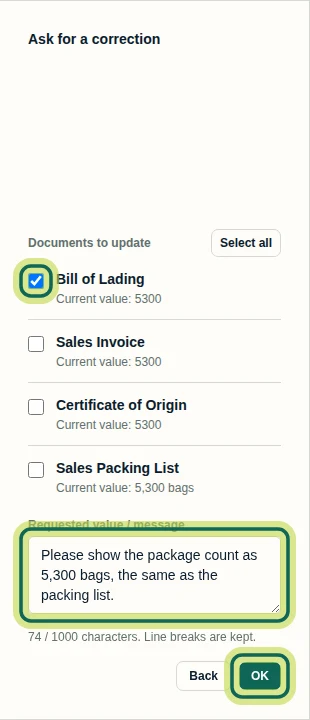
Or select Ask for a correction, choose the document to update, write what should change, select OK and then Save. The request appears on the shipment's Changes page.
Step 5
Expected result
Your decision is saved and the field's status changes.
Next tutorial
Was this helpful?
If something did not work as described, tell us and we will help.