Invite Someone to a Shipment
Add a Company colleague to a shipment, or create an invitation for an outside partner.
- ForShipment users allowed to manage access
- Task timeAbout 4 min
- Video1:16
- Last checked2026-10-22
Overview
Shipment access is separate from Company membership. Shiplete does not email shipment invitations: you share the link and access code yourself.
What you'll learn
- Add a Company colleague directly
- Create an invitation for an outside partner
- Share the link and code safely
- See who has accepted
Before you begin
- A shipment where you can add or invite users Understand Shipment Overview
Step-by-step guide
Open Permissions
Open the shipment, then Permissions in the shipment menu. Select Add shipment user.
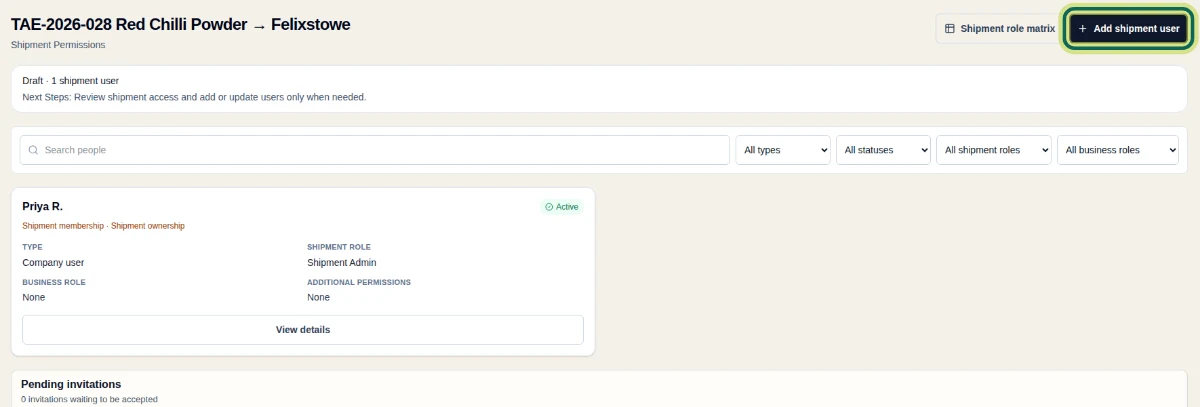
Step 1 Add a colleague
Under Or choose someone in your Company, choose the colleague; they will be added directly. Choose one or more roles, such as Viewer and Uploader, then select Add user. Shipment access does not make anyone a Company member.
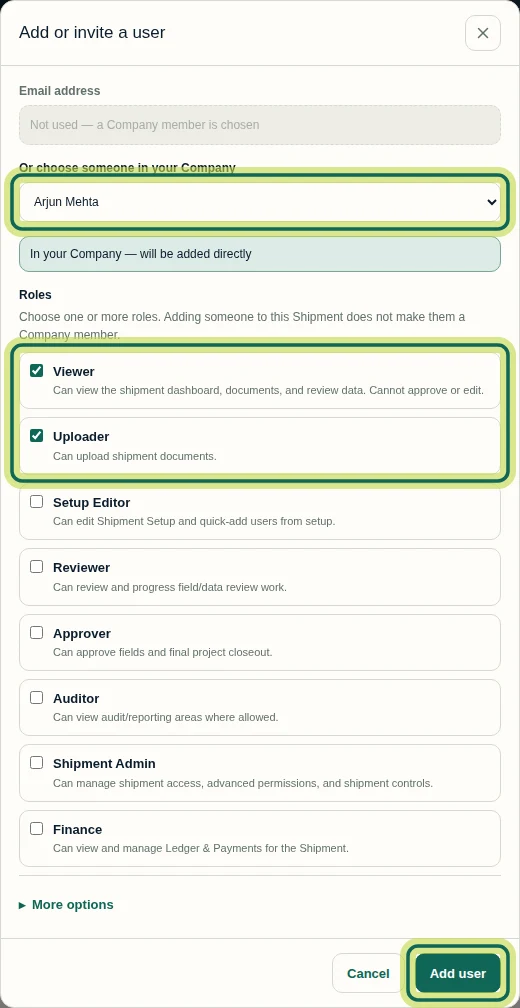
Step 2 Invite an outside partner
For someone outside your Company, enter their Email address; Shiplete creates an invitation. Choose how long it is Valid for and the roles, such as Reviewer, then select Create invitation. Some roles are not available for people outside your Company.
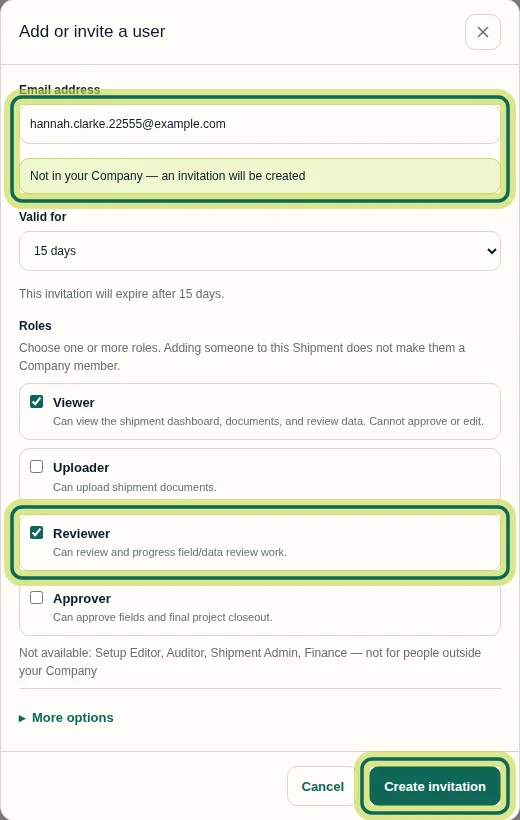
Step 3 Share the link and code
Shiplete does not email the invitation. Copy the Invitation link and the Access code and send them through separate channels. They are shown only once.
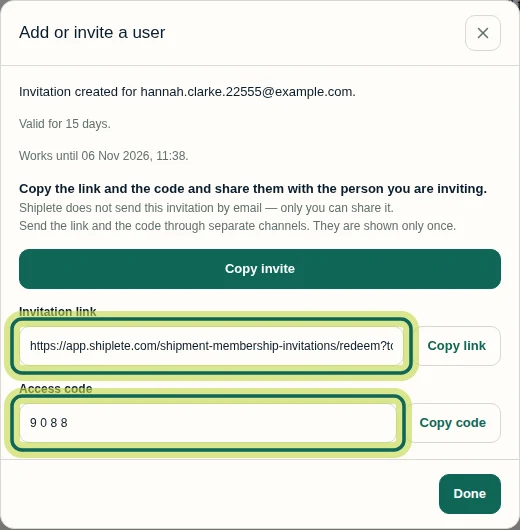
Step 4 Track pending invitations
Until it is accepted, the invitation waits under Pending invitations, where you can Reissue or Revoke it.

Step 5 Your partner accepts
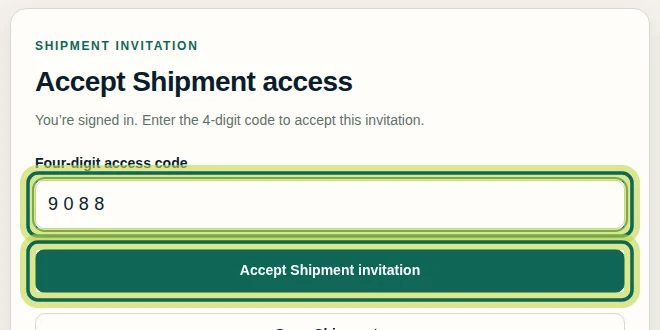
Your partner signs in, opens the link, enters the 4-digit code and selects Accept Shipment invitation. The shipment then appears in their list, and Permissions shows them as active.
Step 6
Expected result
A Company colleague has access at once. An outside partner appears under Pending invitations until they accept, then shows as an active External partner with the roles you chose.
Common issues
- The invitee says no email arrived.
- Shiplete does not email shipment invitations. Share the link and code yourself.
- A role is not offered.
- The roles depend on your own access and on who you are inviting.
Next tutorial
Was this helpful?
If something did not work as described, tell us and we will help.