Understanding Invoices and Payment Status
Understand Finance invoice approval, outstanding balances, and partial, overdue and paid results in Payments.
- ForPeople who inspect shipment invoices and payment balances, and Finance users permitted to create invoices or approve amounts.
- Task timeAbout 3 min
- Video2:27
- Last checked2026-10-23
Overview
Use the shipment’s Payments view to compare invoice and Finance amounts, approve a first invoice when permitted, and read balances alongside due-date wording. Compare partial, overdue and paid dashboard results, then inspect the invoice’s approval context. Finance amount approval is separate from generating or uploading a Commercial Invoice document and from approving extracted fields. A recorded receipt or payment records money in Shiplete; Shiplete does not move the money.
What you'll learn
- Enter sales invoice details when you have permission
- Compare invoice, approved Finance and pending review amounts
- Read Invoiced, Paid / Received, Invoice outstanding and Net due
- Interpret partial, overdue and paid results without relying on one status label
- Open Adjustments and invoice history to check approval context
Before you begin
- Access to the shipment and permission to view Finance information; the Payments dashboard comparison steps also need Company Finance viewing access
- Permission to create a sales invoice for the creation step and permission to approve Finance amounts for the approval step; these are separate permissions
- Familiarity with the Payments dashboard Understanding the Payments Dashboard
- Understand how a receipt is recorded and allocated How to Record a Payment Received
Step-by-step guide
Enter the sales invoice details
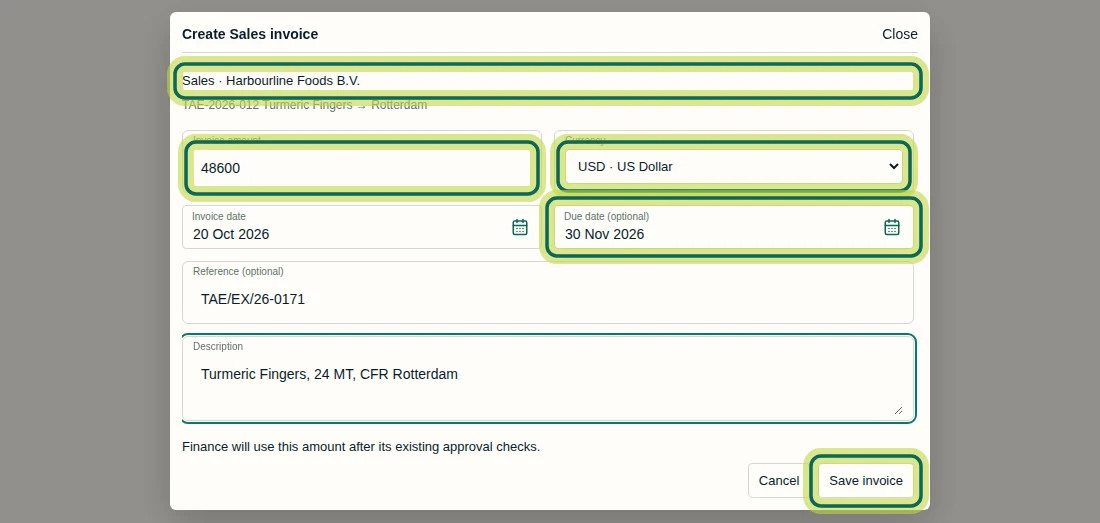
Open the shipment’s Payments view and select Create Sales invoice if available. Check the buyer, then enter Invoice amount, Currency and Invoice date. Add Due date (optional), Reference (optional) and the required Description, then select Save invoice. The recorded example is 48,600 US dollars for Harbourline Foods B.V., dated 20 Oct 2026 and due 30 Nov 2026, with reference TAE/EX/26-0171. Creating an invoice and approving its amount require separate permissions; access to one does not guarantee access to the other. Generating or uploading a Commercial Invoice document, or approving its extracted fields, does not establish Finance settlement.
Step 1 Review and approve the first invoice amount
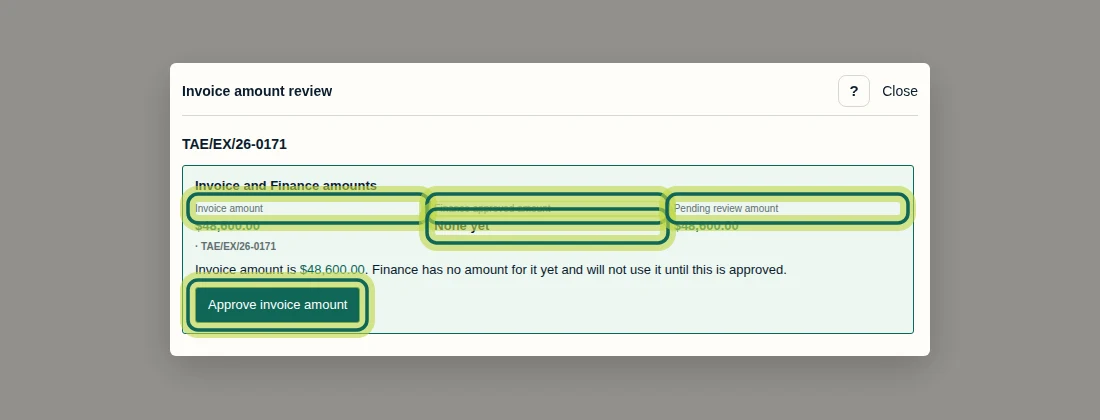
After Save invoice, this first invoice shows Awaiting Finance review and opens Invoice amount review automatically. You can also select Review beside the waiting invoice in the shipment’s Payments view. Compare Invoice amount, Finance approved amount and Pending review amount. Here, None yet means Finance has no approved amount and will not use the invoice amount until approval. If the amount is correct and you have permission to approve it, select Approve invoice amount. A first invoice has no Keep current Finance amount button. View-only users can inspect the amounts but have no decision buttons. A changed invoice with an existing Finance amount is not demonstrated here.
Step 2 Read the approved invoice balance
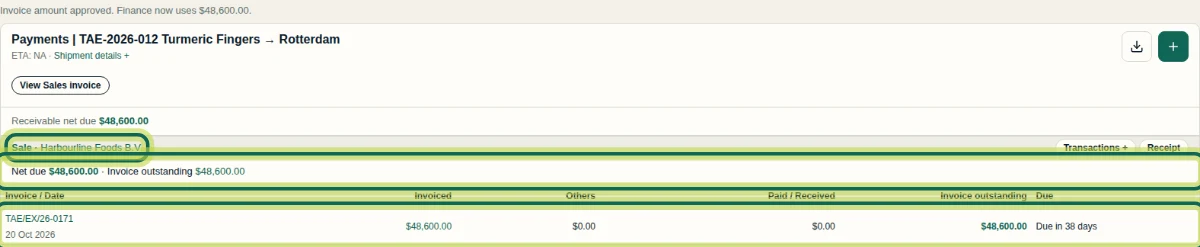
After approval, check the confirmation and the Sale section in the shipment’s Payments view. For TAE-2026-012, Invoiced is 48,600 US dollars, Paid / Received is zero and Invoice outstanding is 48,600 US dollars. Due says Due in 38 days in this recording. Invoiced is the amount Finance uses; it can differ from the latest invoice document. Net due and Invoice outstanding happen to match here. A shipment advance can reduce net due while an invoice remains outstanding; that case is not pictured in this tutorial.
Step 3 Identify a partly received invoice
Open the shipment’s Payments view and compare Invoiced, Paid / Received and Invoice outstanding. TAE-2026-016 shows 186,240 US dollars invoiced, 55,872 US dollars received and 130,368 US dollars outstanding. Receipts allocated to an invoice reduce its outstanding balance. Due still shows Due in 28 days; do not expect a Partial paid label beside every partly received invoice. A recorded receipt or payment is a record in Shiplete, not money moved by Shiplete or evidence of bank integration.

Step 4 Compare partial and overdue results
Open the main Payments page. Use the filter button near the upper right and choose Due status, then Partial paid to inspect partly paid results, or Overdue to inspect overdue results. The screenshot shows the Overdue results with the filter panel closed; the filter choices are not visible. Compare Paid / Received, Net due and Due in the returned rows. TAE-2026-014 has 59,275 euros received and 33,475 euros still due, yet is Overdue by 138 days. TAE-2026-022 has zero received and 92,750 euros due. Overdue, review and missing-due-date conditions can take precedence over Partial paid, so that filter is not a complete list of every invoice with a partial receipt.

Step 5 Check paid results
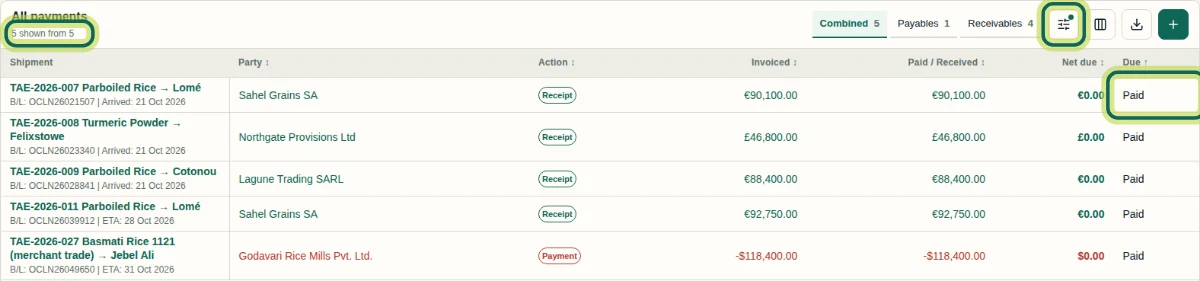
On the main Payments page, open the filter button and choose Due status, then Paid. The screenshot shows the results after the filter panel was closed. Check Net due and Due for each party: these rows show zero net due and Paid. Compare Invoiced with Paid / Received to read the recorded amounts in the currency shown on each row. These are Shiplete records; the Paid label does not mean Shiplete transferred funds.
Step 6 Inspect invoice approval context
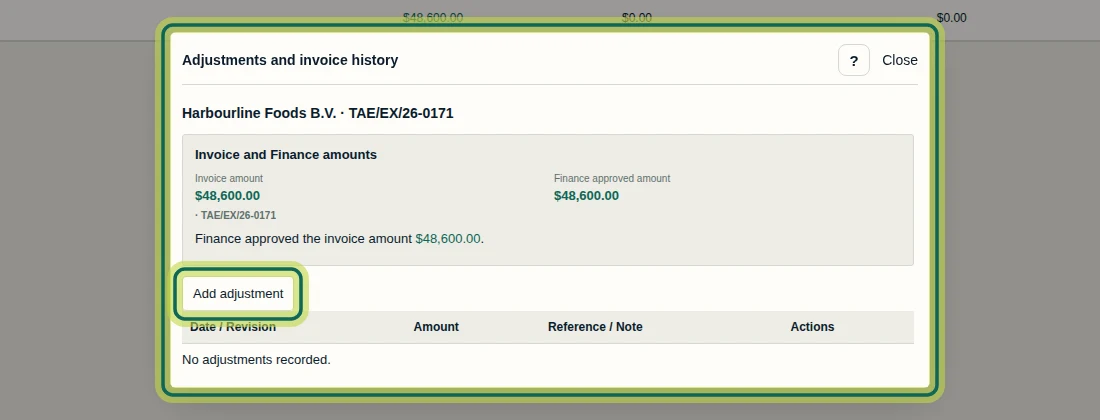
In the shipment’s Payments view, select the invoice reference in Invoice / Date to open Adjustments and invoice history. Check Invoice and Finance amounts to see the current comparison. This example confirms that Finance approved 48,600 US dollars and shows No adjustments recorded. The Add adjustment button is available here, but creating an adjustment is not demonstrated. Next, continue with How to Use the Shipment Ledger.
Step 7
Expected result
You can distinguish an invoice awaiting Finance approval from an approved Finance amount, read the balance still outstanding, compare partial, overdue and paid results, and inspect the invoice’s approval context.
Common issues
- The invoice was saved but still says Awaiting Finance review.
- Open Review in the shipment’s Payments view and compare the invoice and Finance amounts. A first invoice with Finance approved amount None yet needs approval before Finance uses it. Users without permission to approve Finance amounts can inspect the proposal but do not see decision buttons.
- A partly received invoice does not show Partial paid beside its balance.
- Compare Paid / Received with Invoice outstanding and read Due separately. The Due cell can show relative due-date wording. Overdue, review or missing-due-date conditions can take precedence over Partial paid.
- Net due differs from Invoice outstanding.
- Check whether a shipment advance is available. An advance can reduce net due while the invoice remains outstanding; do not treat net due alone as proof that an invoice has been settled.
Next tutorial
Was this helpful?
If something did not work as described, tell us and we will help.