Understanding Master Updates, Snapshots and Inactive Records
Choose saved or current Master details in Setup, understand independent document snapshots, and manage inactive products.
- ForCompany Owners, Admins and authorized users who maintain Masters and edit Shipment Setup
- Task timeAbout 3 min
- Video2:19
- Last checked2026-10-23
Overview
Setup and commercial documents retain saved copies of Master details. Follow a party address change, choose Keep saved or Use current in Setup, and see the existing invoice retain its saved address. Then inactivate a product, check its exclusion from new Setup choices, cancel deletion and activate it again.
What you'll learn
- Save a Party Master address change without automatically replacing saved shipment details
- Choose Keep saved or Use current in Setup and save the chosen details
- Recognize that an existing commercial document keeps its own saved details
- Inactivate and reactivate a product, and check new choices in Setup
- Understand the deletion dialog and cancel without removing the record
Before you begin
- A saved Shipment Setup with a selected party and an existing saved commercial document using that party Enter Shipment Setup
- Permission to view and change Masters, access to the shipment, permission to edit Setup, and permission to open the shipment's commercial documents
- A non-default product you are authorized to inactivate and reactivate
Step-by-step guide
Save the changed Party Master address
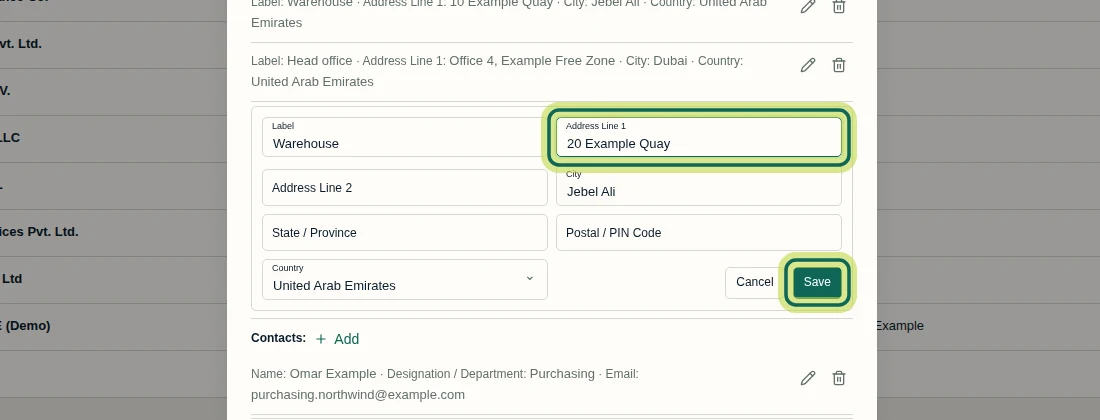
Open Company, then Party Master. Use Edit Northwind Foods FZE (Demo) and Edit Address 1 to change Address Line 1 from 10 Example Quay to 20 Example Quay. Select the address entry's Save, then Save Party. The entry's Save must finish before Save Party becomes available. You need permission to view and change Masters; editing this party does not automatically replace details already saved in Setup or documents.
Step 1 Choose whether Setup keeps its saved details
Open the shipment's Setup and select Parties. Review Master details changed since this Setup was saved. Keep saved dismisses the proposal and retains the shipment's saved details; in this example, the address stays at 10 Example Quay. To take the changed details shown in the notice, choose Use current. This choice changes the Setup draft and still needs saving. Viewing current Master details requires Masters view permission and access to the shipment; saving the choice also requires permission to edit Setup. To switch to the current details after choosing Keep saved, close Setup and reopen it to review the proposal again.

Step 2 Save the current details in Setup
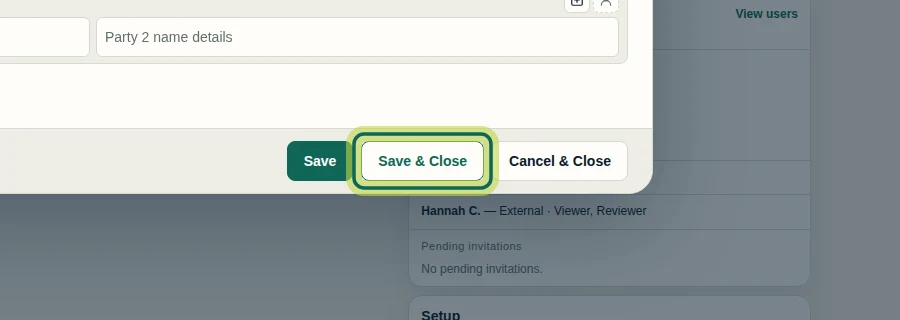
After choosing Use current, check the Consignee's Expected details in Setup. In this example, the address is now 20 Example Quay. Select Save & Close, then reopen Setup and Parties to confirm the saved address. Use current changes the draft; Save & Close persists that choice for this shipment.
Step 3 Check the existing document's saved details
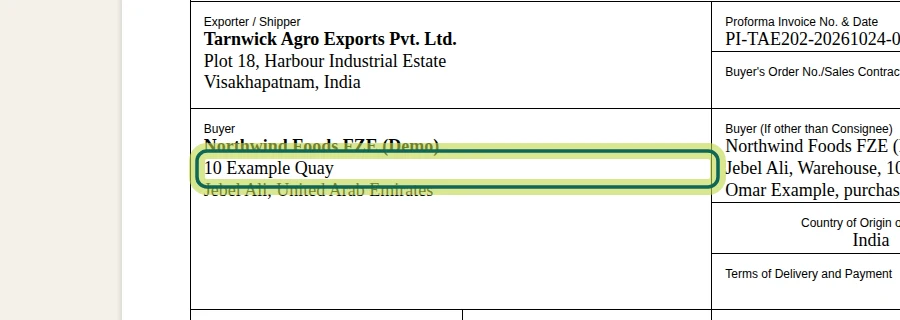
Open Commercial documents and reopen the saved proforma invoice. Its Buyer address still reads 10 Example Quay, although the shipment's Setup now holds 20 Example Quay. The document keeps its own saved copy, or snapshot, of the details. Changing a Master and saving updated Setup details does not automatically refresh an existing document. This example demonstrates retention of the saved address; it does not demonstrate refreshing the document.
Step 4 Inactivate a product for new Setup choices
Open Company, then Product Master. On the product you want to stop offering in new Setup selections, select Inactivate Turmeric Powder (Demo). Its Status changes to Inactive, while the record remains in the list. You need permission to change Masters. Inactivation does not erase valid details already saved in Setup or documents. The filtering shown here applies to new choices in Setup; availability in commercial-document pickers is not established by this example.

Step 5 Check that Setup excludes the inactive product
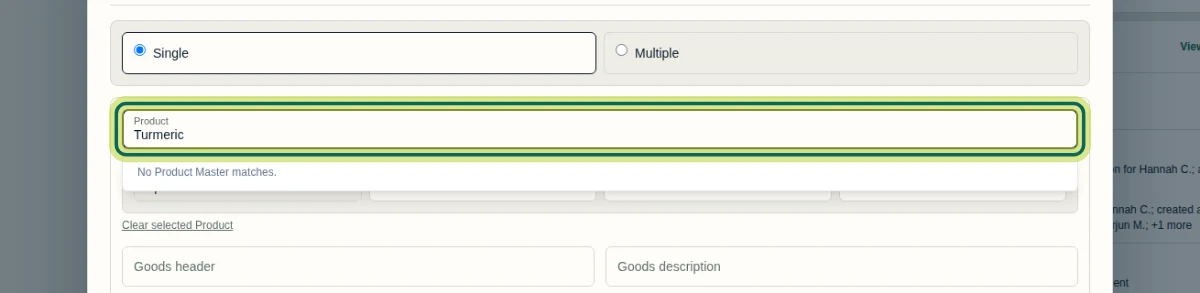
Open a shipment's Setup, select Goods, and search for Turmeric in Product. This example shows No Product Master matches. because the matching product is inactive. Close with Cancel & Close when you are only checking availability, so the search does not change the saved shipment. This result concerns new selections, not removal of previously saved product details.
Step 6 Cancel deletion and reactivate the record
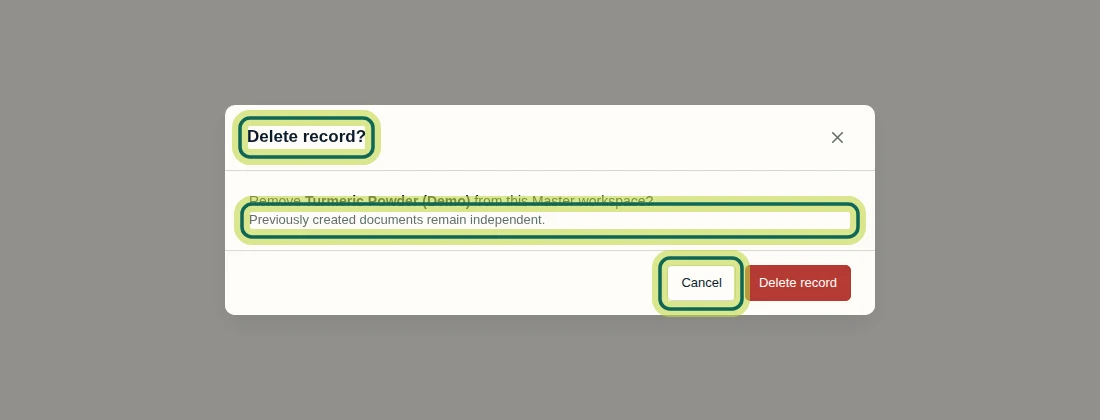
If you open Delete Turmeric Powder (Demo) in Product Master, review Delete record? and Previously created documents remain independent. Select Cancel to keep the record, as shown here. Back in the product row, select Activate Turmeric Powder (Demo) and confirm Active status. Deletion was cancelled in this example; it does not demonstrate a recycle bin or deleted-record restoration. Next, use your saved Setup details when preparing a commercial document.
Step 7
Expected result
You can keep or explicitly update saved party details in Setup, recognize an existing document's independent saved address, and control a product's availability for new Setup selections through Inactivate and Activate.
Next tutorial
Was this helpful?
If something did not work as described, tell us and we will help.