How to Raise a Document Correction Request
Choose a document, save the requested value, and find the correction request later in Changes.
- ForShipment reviewers who need to record document corrections
- Task timeAbout 3 min
- Video2:27
- Last checked2026-10-23
Overview
Check the source document and its units, select the document to update, enter the intended value and save a correction request. Find the saved request in Changes and open its document context. Saving a request does not edit the file or send it to the issuer.
What you'll learn
- Check the printed value and units before requesting a correction
- Select the exact document to update
- Enter the intended value and save the request
- Find the request in Changes and review its document context
Before you begin
- A shipment with uploaded documents to review Upload Shipping Documents
- Know how to review extracted fields and check their sources Approve Extracted Values or Request Corrections
- Permission to view field evidence and source previews, create correction requests and view requests; viewer-only access cannot create requests
Step-by-step guide
Open the field to review
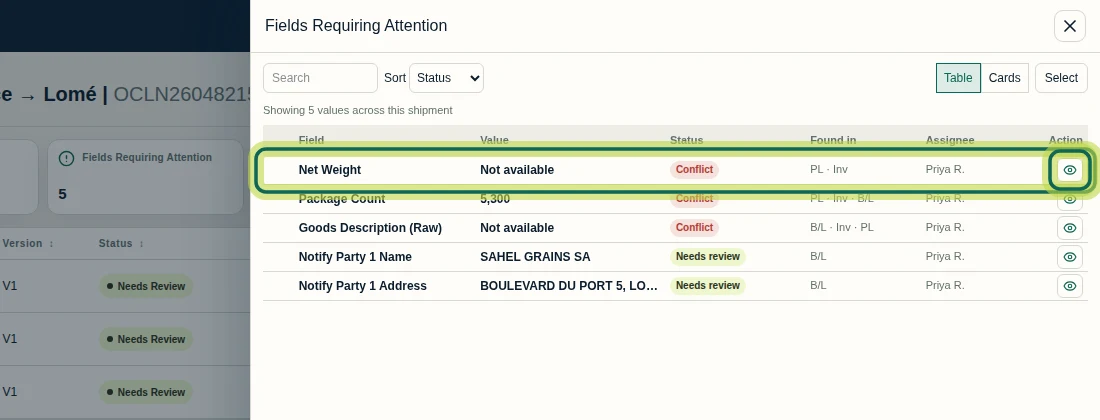
Open the shipment’s Fields Requiring Attention list, then select the review control beside Net Weight. You need permission to view field evidence and source previews, create correction requests, and view requests later. Viewer-only access cannot create a request.
Step 1 Check the printed value and units
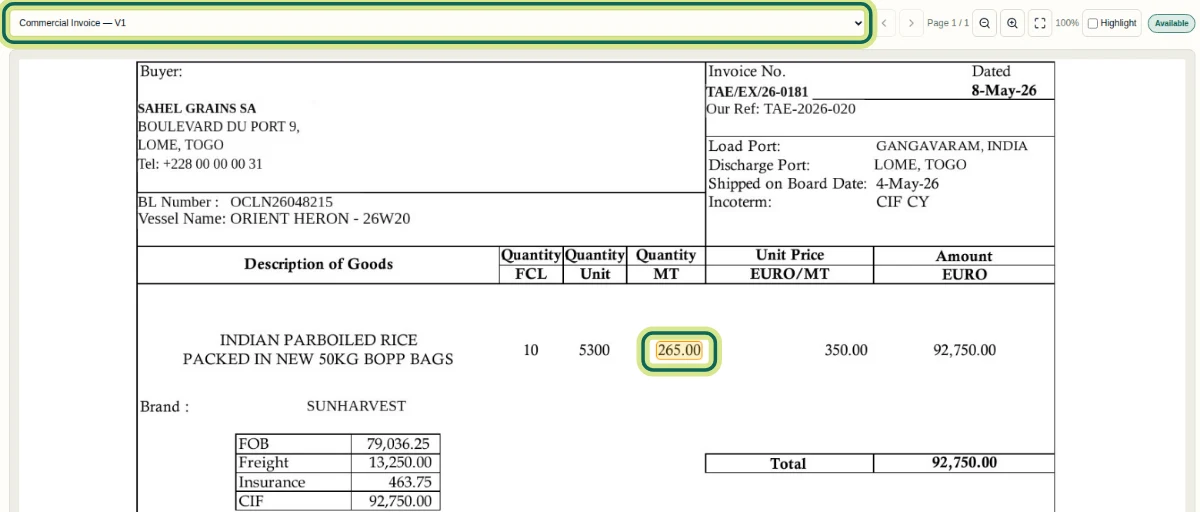
In the field dialog, find the Commercial Invoice card under Where each value was found and select View in documents. Check the document version, printed number and unit heading. Here, 265.00 appears under Quantity MT, representing the same weight as 265,000.00 kgs. Decide whether the document’s wording needs changing after checking those units.
Step 2 Open the correction controls
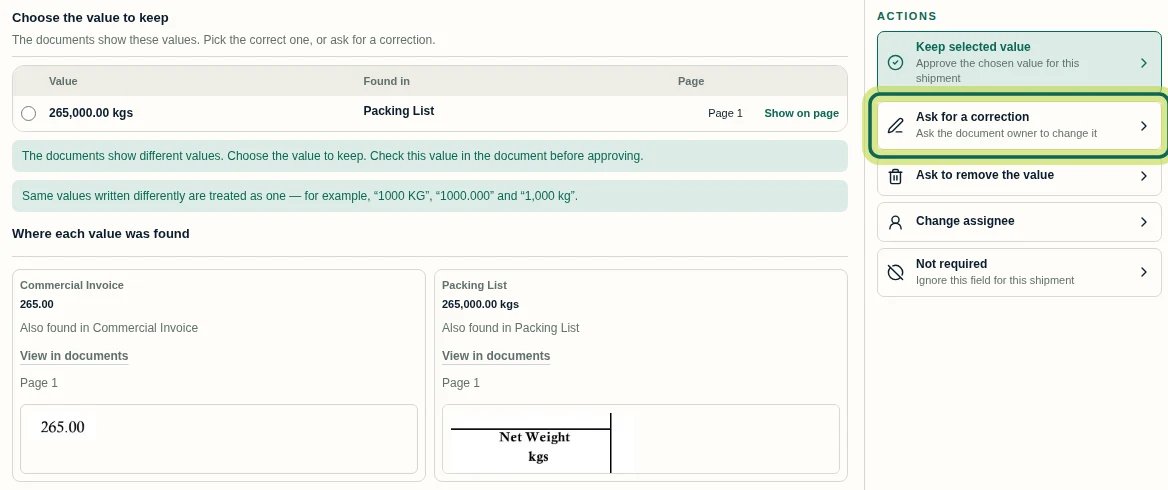
Return to the Net Weight dialog and select Ask for a correction in Actions. The correction panel lets you choose which document should change and enter the requested text. The request records a change to ask for; saving it does not edit the uploaded file or send it to the issuer.
Step 3 Choose the document to update
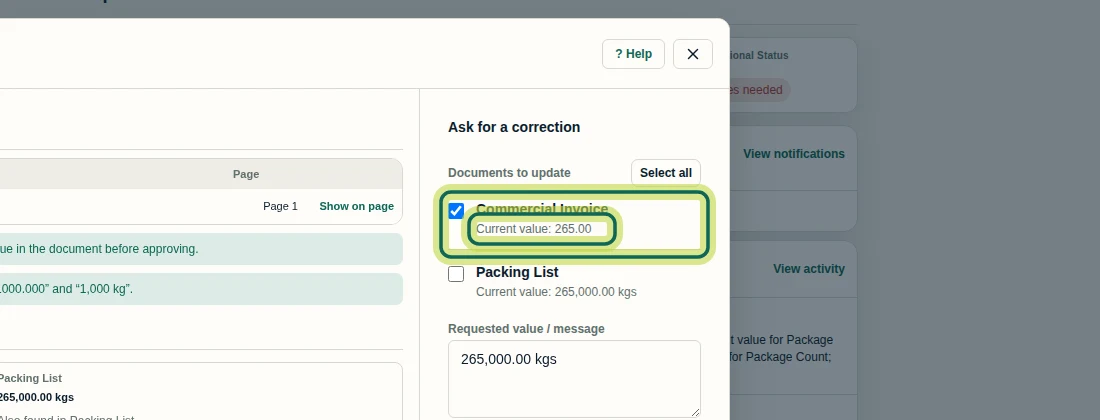
Under Documents to update, check each document’s Current value: and tick only the intended target. For this recorded request, tick Commercial Invoice and leave Packing List unticked. Select all selects the offered documents; check each target before saving.
Step 4 Enter the intended value and save
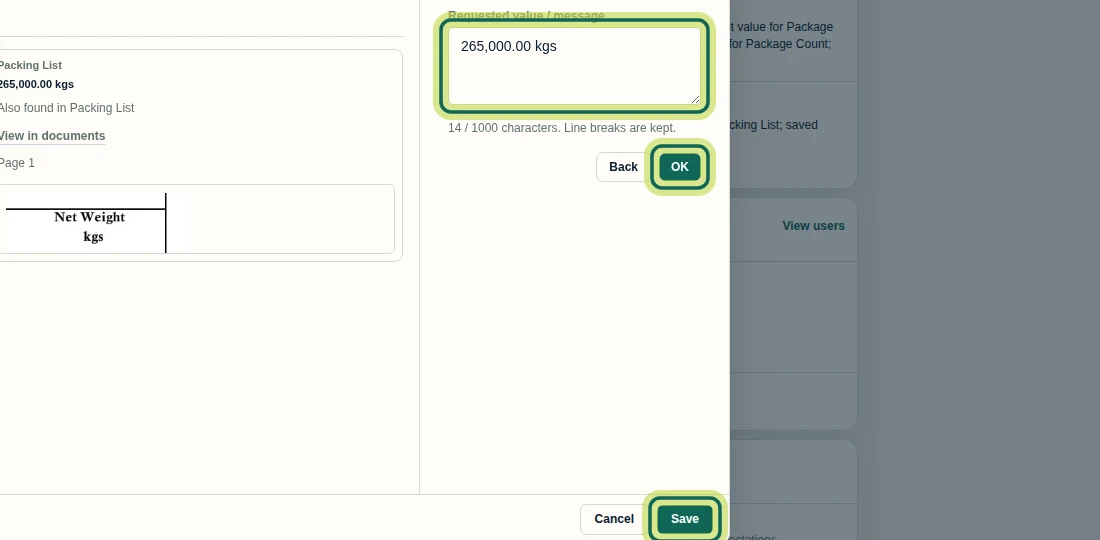
In Requested value / message, enter the intended value. This example uses 265,000.00 kgs. For a replacement request that can be checked automatically, enter the value itself; the complete requested text is the comparison target. Put explanatory rationale in the change report. The field allows 1,000 characters and preserves line breaks. Once the target document and value are complete, select Save at the bottom of the dialog. OK only stages the request and is optional; it does not replace Save.
Step 5 Find the saved request in Changes
Select Changes in the shipment menu. On Change Requests, find Net Weight under Open requests and check Document and Requested change. Here the request targets Commercial Invoice with 265,000.00 kgs. The second open row is a separate Package Count request. Select Review request context in the Net Weight row to open the target document’s requests.

Step 6 Review the request in document context
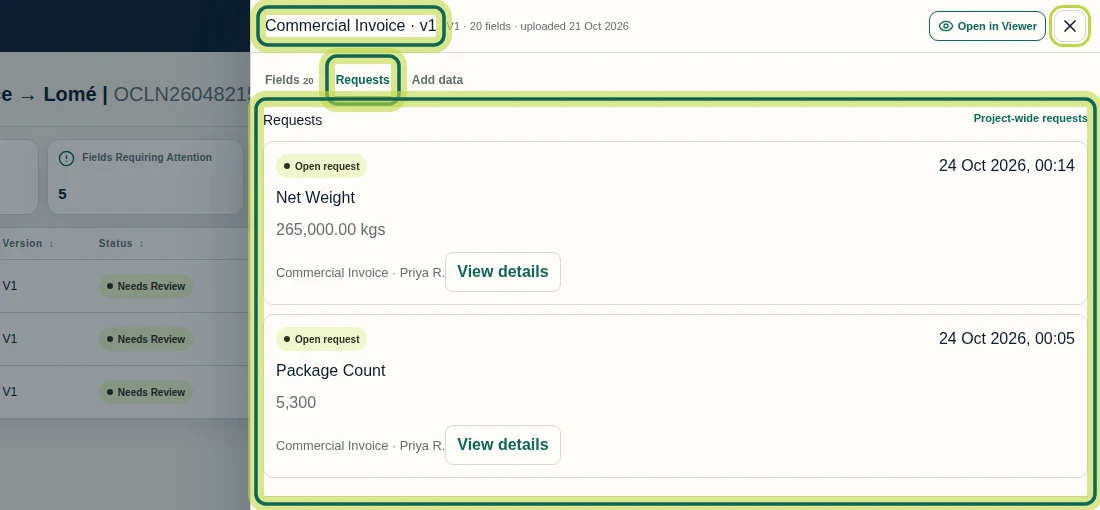
In the Commercial Invoice drawer, the Requests tab lists the document’s requests. Find the Net Weight card, check its Open request label and requested value, and use View details for more information. The saved request is now available for follow-up. Next, return to Changes and use Prepare Change Report to annotate corrections and generate a report.
Step 7
Expected result
A correction request is saved for the selected shipment field and document version, and can be found under Open requests in Changes and in the document’s Requests tab.
Next tutorial
Was this helpful?
If something did not work as described, tell us and we will help.