Approve Extracted Values or Request Corrections
Check document evidence, approve an extracted value, and request a document correction without editing the source document.
- ForShipment reviewers with permission to approve fields and create correction requests
- Task timeAbout 3 min
- Video2:34
- Last checked2026-10-23
Overview
Review one field at a time from Ready to approve or Fields Requiring Attention. Check the document evidence, save a supported value decision, and distinguish a saved approval from a pending document correction.
What you'll learn
- Inspect a field's document values and source evidence
- Stage an approval with Keep selected value and apply it with Save
- Distinguish Request change, Ignore value and Not required
- Find a saved approval and pending document change in History
Before you begin
- A shipment with uploaded documents and extracted fields Upload Shipping Documents
- Know how to identify discrepancies between documents How to Identify Discrepancies Between Documents
- Permission to view and approve fields and create correction requests; preview access to inspect source pages
Step-by-step guide
Open a field ready for approval
Open the shipment's Overview, then Ready to approve. Find Port of Loading and select Review values, the eye button at the end of the row. To complete this tutorial, you need permission to view and approve fields and create correction requests. Approval also depends on whether the current field is eligible; source previews require preview access.
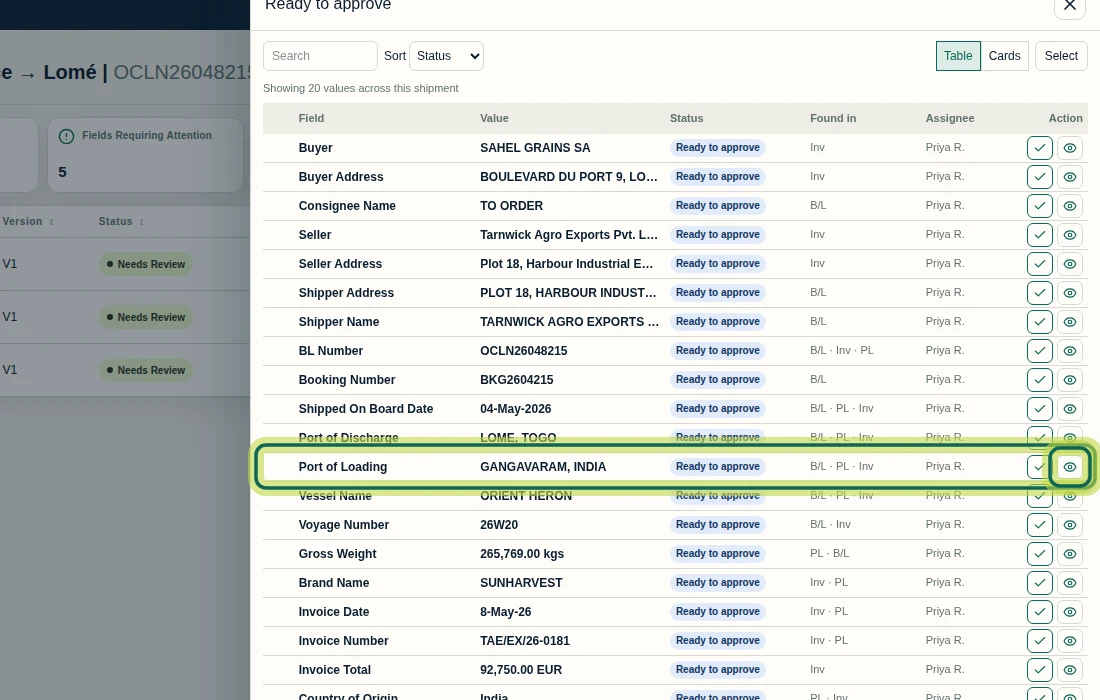
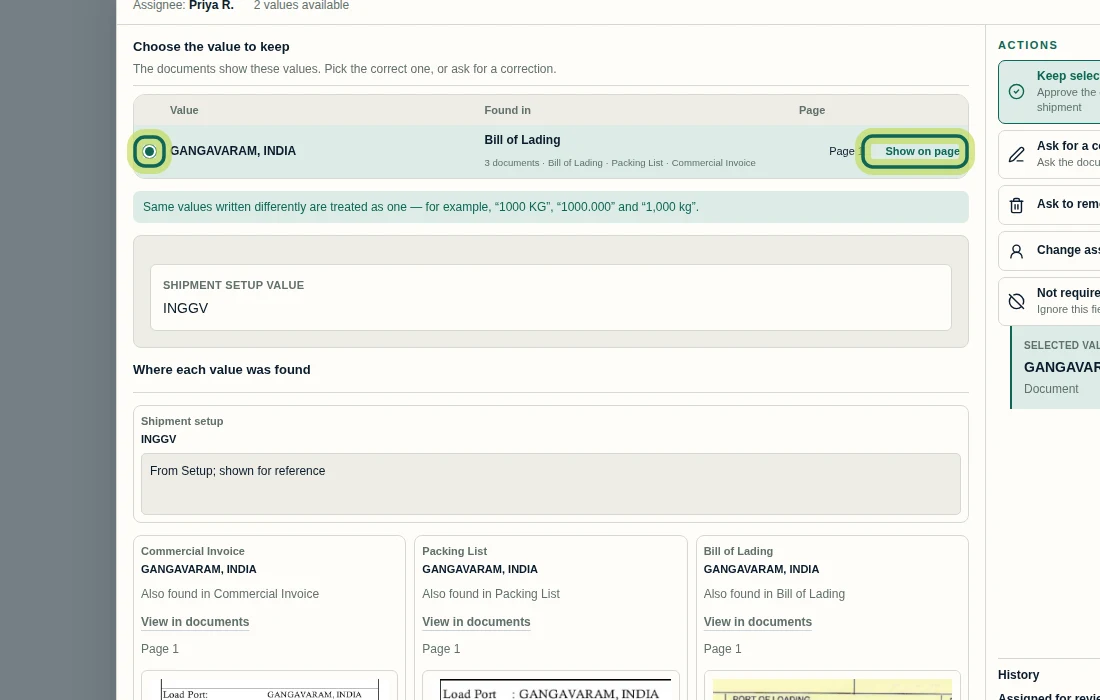
Step 1 Check the value against its documents
In the Port of Loading dialog, review the value, its Found in sources and the cards under Where each value was found. Use Show on page or View in documents to inspect the source. Select the radio button beside the supported document value, here GANGAVARAM, INDIA. Shipment setup value is reference information; displaying it does not make it an independent approval choice.
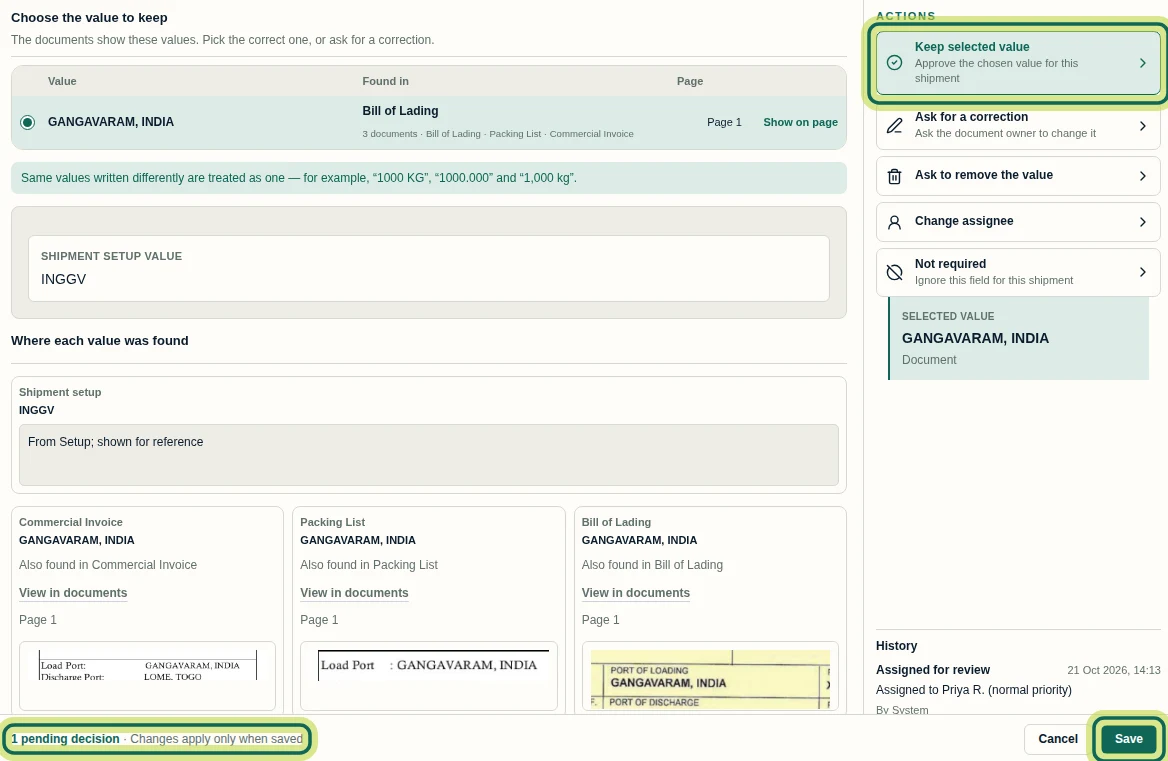
Step 2 Stage the approval and save it
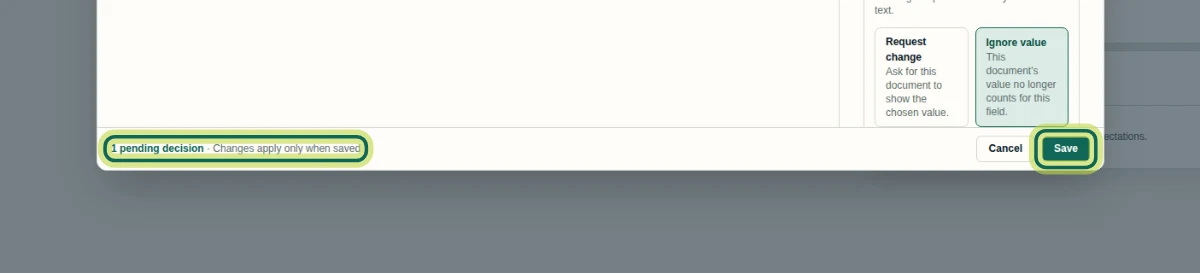
With the supported document value selected, choose Keep selected value, then Save. The footer's 1 pending decision and Changes apply only when saved mean the approval is staged until saved. Cancel closes without saving the pending decision. In this recording, saving Port of Loading reduces Ready to approve from 20 to 19 values. For a different correction need, the action list offers Ask for a correction and Ask to remove the value. Not required excludes the whole field for this shipment; it is different from ignoring one document's value.
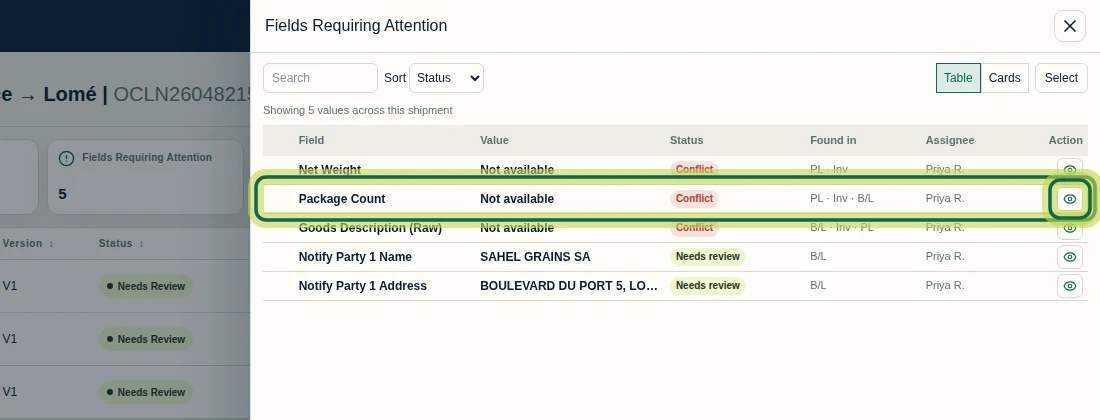
Step 3 Review a field needing attention
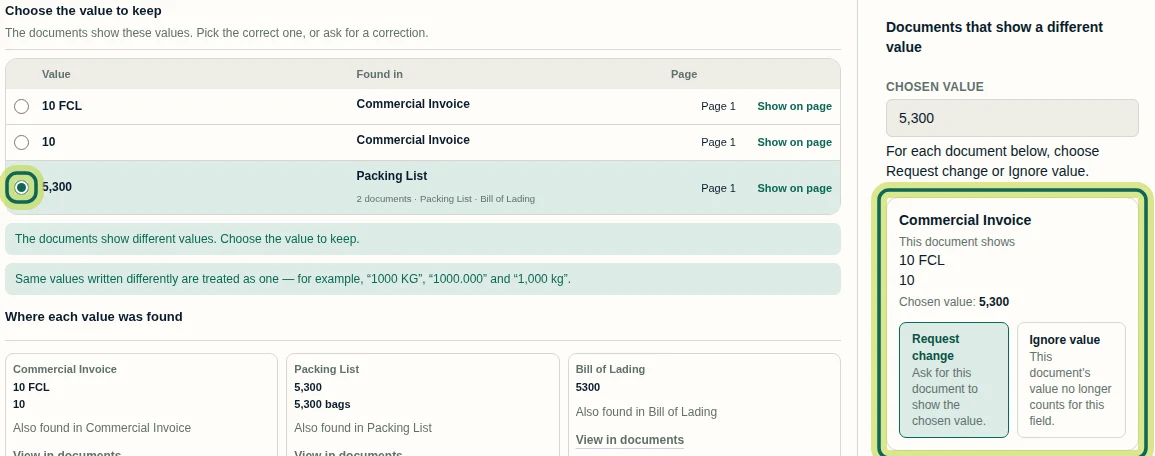
From the shipment's Overview, open Fields Requiring Attention. Find Package Count, marked Conflict, and select its Review values eye button. Inspect the document values and their evidence before deciding which value to keep.
Step 4 Choose a value and request a document change
In Package Count, choose the supported document value; this example selects 5,300 from the Packing List. The Commercial Invoice card shows 10 FCL and 10. Choose Request change on that card to ask for the invoice to show the chosen value. Ignore value instead excludes that particular document's value from this field; use it only when that evidence should no longer count. Neither action edits the source document.
Step 5 Save the staged review choices
Every listed document needs a choice before Save can apply. In this capture the Bill of Lading shows 5300, written without a comma, so it also needed a choice; Ignore value was selected for it. Choose deliberately: request a change where a correction is needed, and ignore evidence only when it should be excluded, not just to enable Save. The footer says Changes apply only when saved; select Cancel to leave without applying them. Saving a correction request records the requested document change; it does not update the document itself.
Step 6 Check what was saved and what remains pending
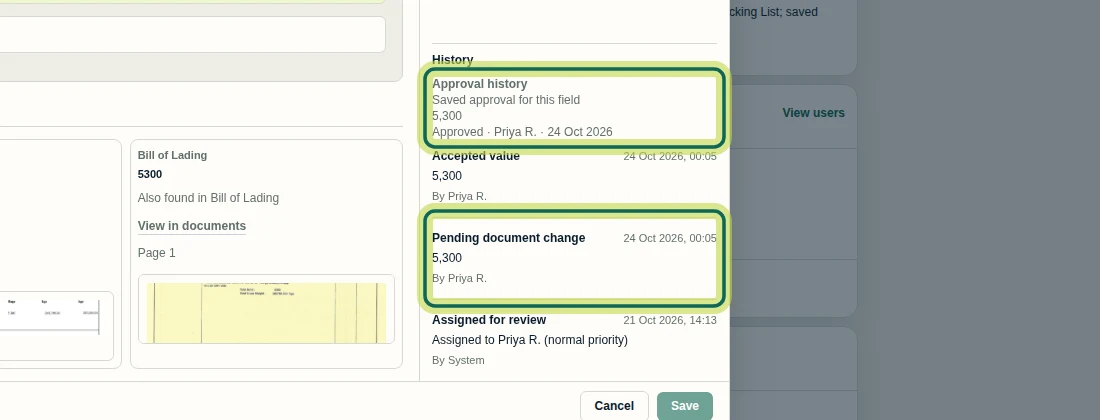
Reopen the field and check History. In this recording, Approval history records the saved 5,300 approval by Priya R., and Pending document change records the outstanding update. A saved value decision does not mean the document has been corrected. Next, follow Raise a Document Correction Request for the detailed correction-request controls.
Step 7
Expected result
A supported document value is saved as a field decision. Where a document correction is requested, History records the saved approval and the pending document change separately.
Next tutorial
Was this helpful?
If something did not work as described, tell us and we will help.