How to Collaborate on Field Reviews
Check shipment review access, inspect assignee choices, find My Items and trace existing decisions in Activity.
- ForShipment reviewers and people who manage shipment access or route field review work
- Task timeAbout 3 min
- Video2:23
- Last checked2026-10-23
Overview
Use shipment roles, field assignees, My Items and Activity to understand how review work is shared. This single-user recording previews access and assignment controls without adding a user or saving a reassignment.
What you'll learn
- Check shipment access and compare Viewer, Reviewer and Approver roles
- Inspect the choices for adding a Company member to a shipment
- Find a field's assignee and read a reviewer candidate's access notice
- Find assigned work with My Items and Needs attention
- Trace existing field review decisions in Activity
Before you begin
- Access to a shipment with uploaded documents and fields needing review Review Extracted Document Fields
- For the Permissions steps you must be an internal Company user who can manage shipment users or grant shipment permissions; reassigning fields needs permission to reassign, and changing an assignee is optional Invite Someone to a Shipment
- Permission to view shipment Activity for the activity step
Step-by-step guide
Check who has shipment access
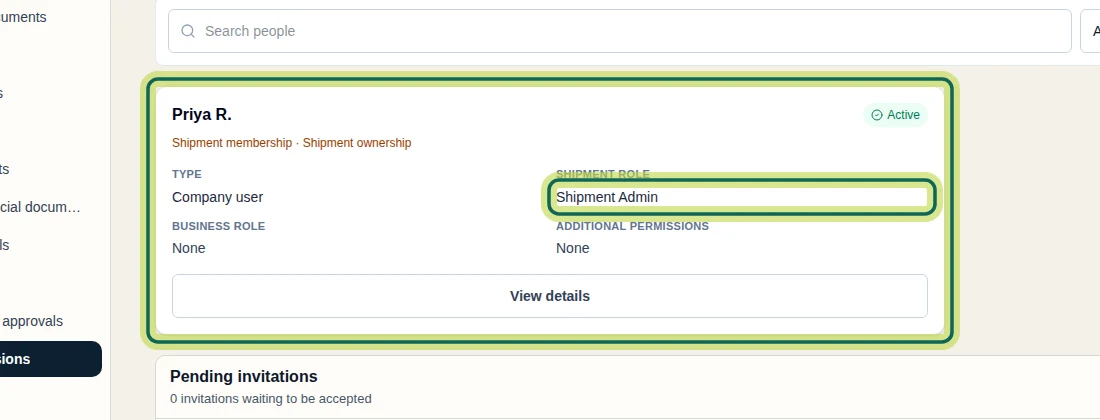
Open the shipment and select Permissions. Read each person's status and SHIPMENT ROLE. In this example, Priya R. is Active and has the Shipment Admin role. Company membership alone does not give someone shipment access; check their access to this shipment before planning review work. The user list shows only for internal Company users who can manage shipment users or grant shipment permissions; others see that only the Shipment's Company manages users.
Step 1 Compare the review roles
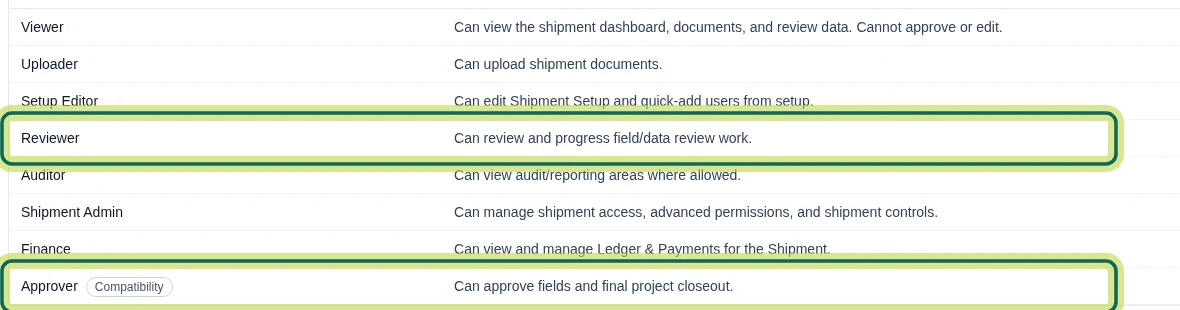
From Permissions, select Shipment role matrix. Viewer can view shipment documents and review data but cannot approve or edit. Reviewer can review and progress field review work. Approver, marked Compatibility, can approve fields and final project closeout. The matrix is read-only. A person's available actions also depend on their effective permissions for the shipment.
Step 2 Inspect the choices for adding a Company member
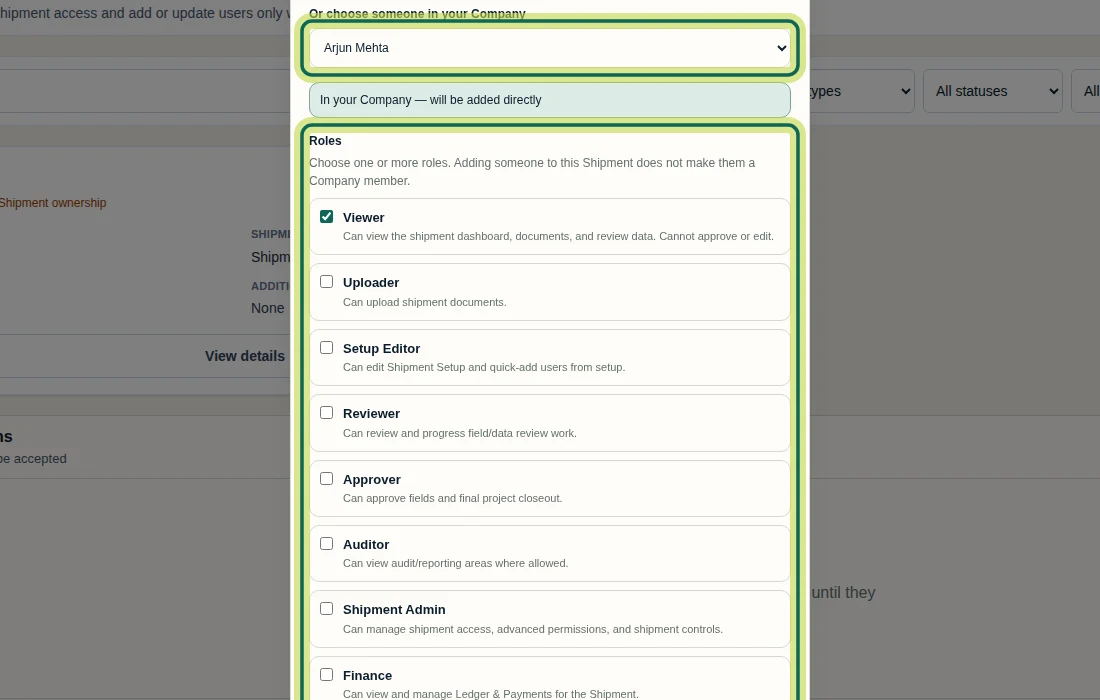
If you are allowed to manage shipment users, select Add shipment user on Permissions. In Add or invite a user, use Or choose someone in your Company and inspect Roles. Viewer is selected in this example; Reviewer is a separate option. For a Company member, Add user grants shipment access directly. Select it only when you intend to add that person, or use Cancel to leave. The recording previews these choices and does not add Arjun. Adding someone to a shipment does not make them a Company member.
Step 3 Check a field's assignee
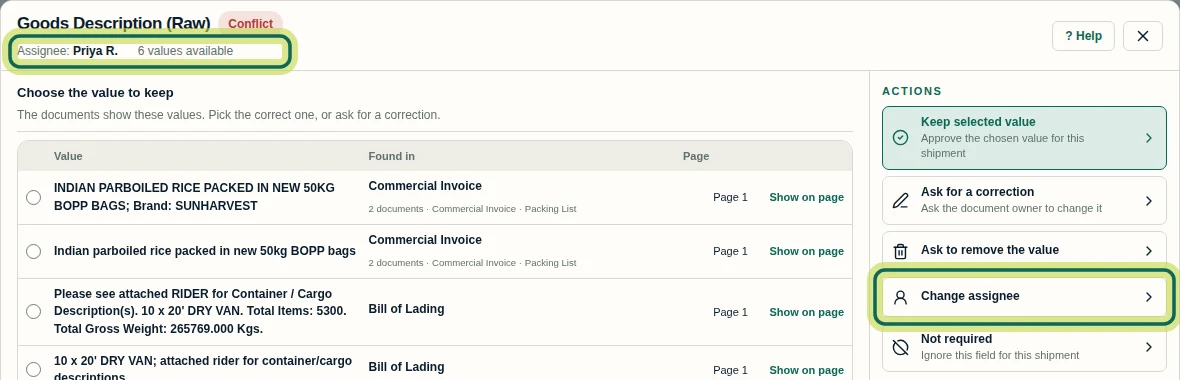
On Overview, open Fields Requiring Attention and open the field you want to review. The list has an Assignee column, and the field dialog repeats Assignee beneath the title. Check this name before routing work. If you have permission to reassign the field, select Change assignee. If reassignment is unavailable to you, ask a Shipment Admin to reassign it.
Step 4 Search for a reviewer and read the access notice
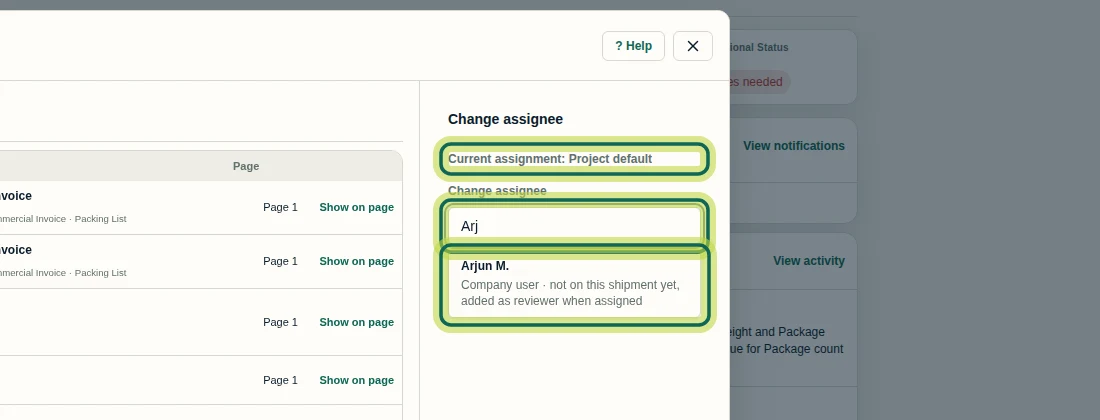
In a field's Change assignee panel, check Current assignment, then type part of the person's name into the search box. Typing Arj finds Arjun M. here. Read the candidate's access notice before selecting them: this Company user is not on the shipment yet and would receive reviewer access when assigned. Searching alone does not reassign the field. This recording stops at the search result; it does not show a saved reassignment or Arjun reviewing the field.
Step 5 Find your assigned review work
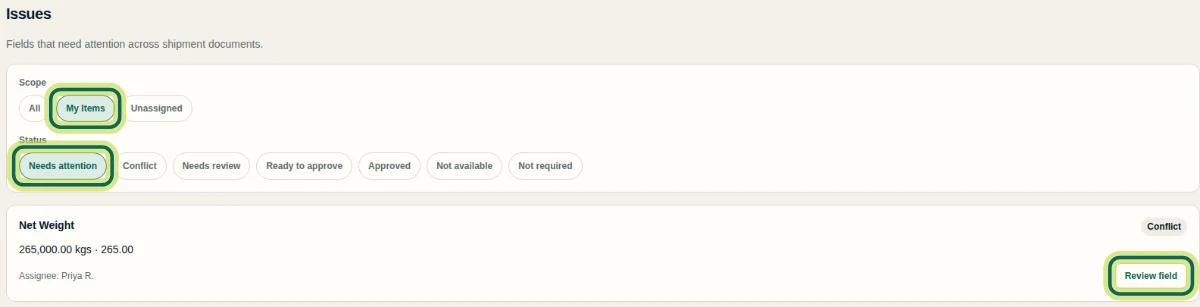
Open the shipment's Issues page. Under Scope, choose My Items; under Status, choose Needs attention. My Items uses the current reviewer assignment, not who uploaded the document. Check Assignee on a card and select Review field to inspect it. This example shows Priya's existing work only. If no items match, check the scope and status filters before assuming the shipment has no review work.
Step 6 Check who made a review decision
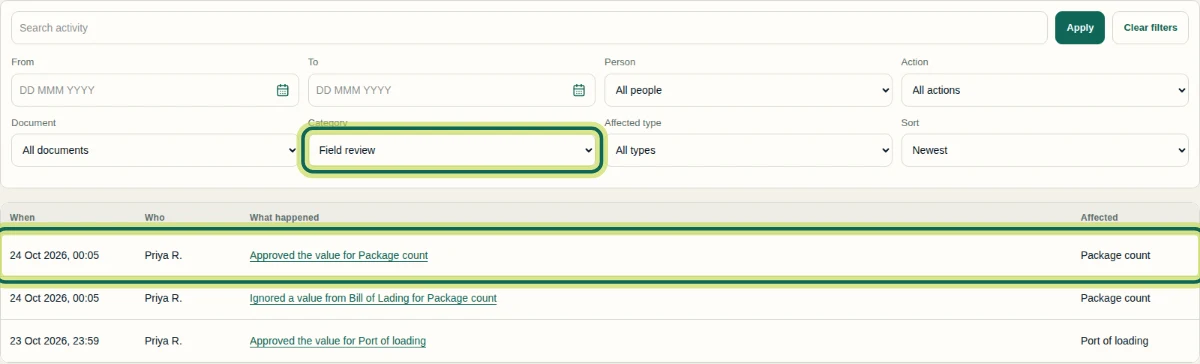
If you have permission to view shipment Activity, open it, set Category to Field review, and select Apply. Read When, Who, What happened and Affected to trace existing review decisions. The rows shown are Priya's earlier decisions; they do not demonstrate a handoff to Arjun. Next, use Person or Document and select Apply to narrow the history to the work you need to check.
Step 7
Expected result
You can check shipment review access, identify a field's assignee, inspect reviewer candidates, find your assigned work and trace existing review decisions.
Next tutorial
Was this helpful?
If something did not work as described, tell us and we will help.