How to View Document Changes and Review History
Compare document versions, check saved field approvals, and trace permitted review decisions in shipment Activity.
- ForShipment reviewers checking document revisions and recorded review decisions.
- Task timeAbout 3 min
- Video2:30
- Last checked2026-10-23
Overview
Use Viewer to inspect earlier document versions and compare extracted values. Check recent field history, then use shipment Activity to find attributable review decisions and open their details.
What you'll learn
- Select and download an exact document version
- Compare changed fields and all extracted values
- Read saved approvals and recent field history
- Filter shipment Activity and inspect a recorded decision
Before you begin
- A shipment with accessible earlier and current document versions Use the Evidence Viewer
- A corrected document and a field with recorded review decisions How to Review a Corrected Document
- Document-preview access, field access for comparison, and separate audit access for Activity; downloading also requires the relevant download or export permission
Step-by-step guide
Inspect the selected document version
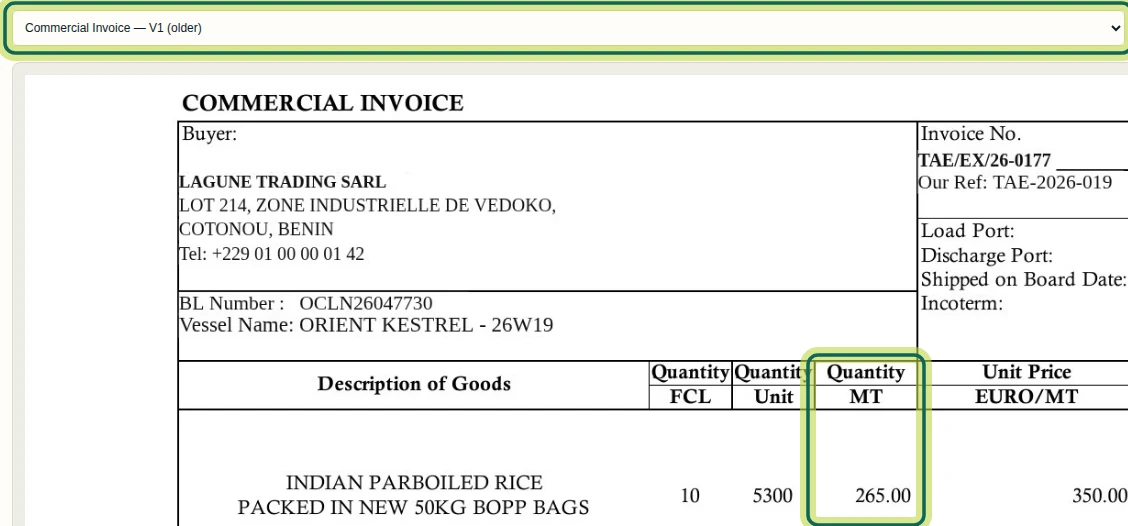
Open the shipment and select Viewer. Use the Document selector to choose the version you want to inspect. Earlier uploaded versions are marked (older). Here, Commercial Invoice — V1 (older) shows Quantity MT as 265.00. Preview follows the selected version and requires document-preview access.
Step 1 Choose the right download
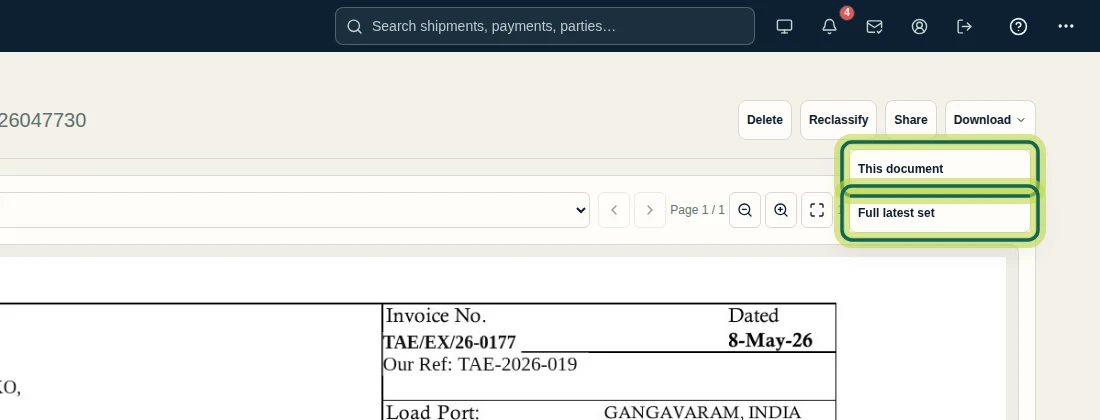
With the required version selected in Viewer, open Download. Choose This document to download that exact version, including an older version when selected. Full latest set is a separate choice for the latest document set. Download and export permissions determine what you can obtain.
Step 2 Compare the extracted values
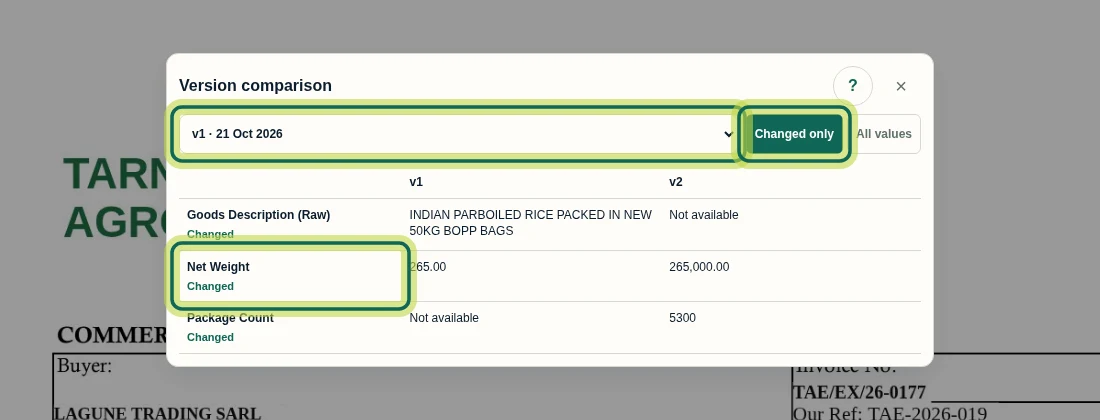
In Viewer, select Commercial Invoice — V2, then Compare. In Version comparison, choose version one from the earlier-version list and select Changed only. The columns show the earlier and current extracted values; Net Weight is 265.00 in v1 and 265,000.00 in v2. Comparison requires field access. It compares extracted fields, not every visual or wording change in the PDF.
Step 3 Read the full comparison
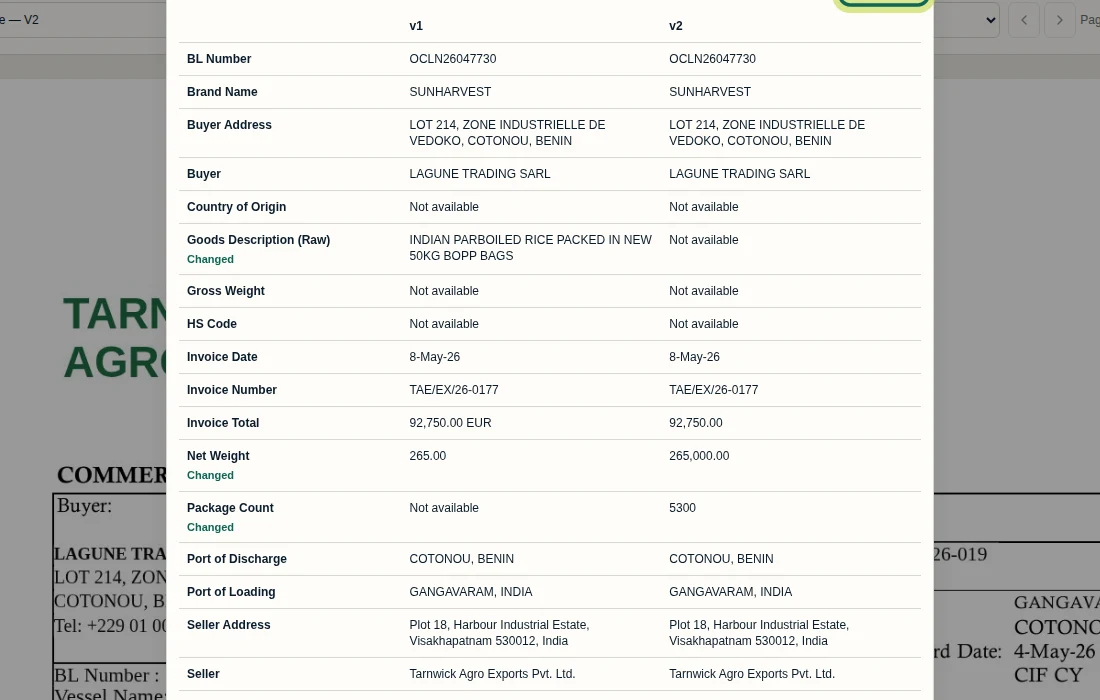
In Version comparison, select All values to include the other compared fields. Read the v1 and v2 columns together. Matching entries such as BL Number are shown alongside fields marked Changed. Not available means the comparison has no value to show there; do not treat it as proof that the document content stayed the same.
Step 4 Check the saved approval and recent history
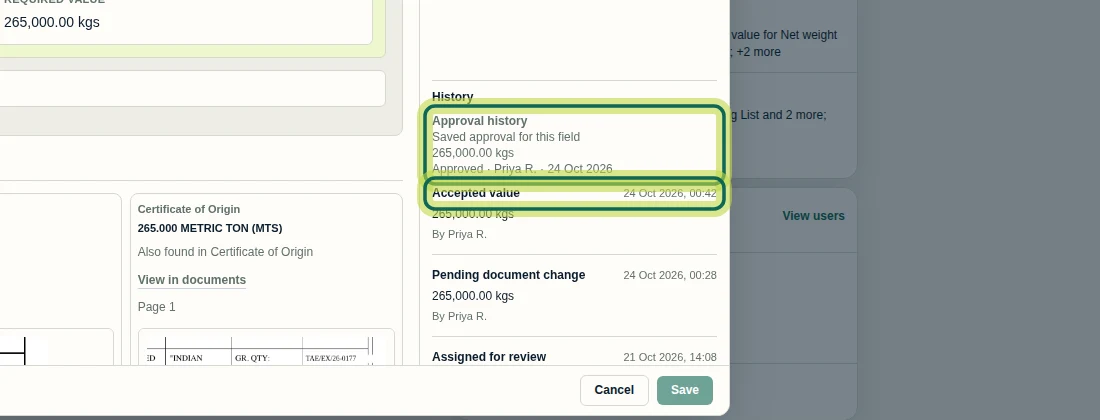
Open the field-name review dialog for the value you are investigating and find History on the right. Approval history shows Saved approval for this field, including the approved value, person and date. Recent entries such as Accepted value and Pending document change have their own times and names. A saved approval records a past decision; it does not establish that current evidence agrees. This dialog is not a complete audit browser: when more activities exist, its recent list is limited to the latest three. Use shipment Activity for broader review.
Step 5 Find field decisions in Activity
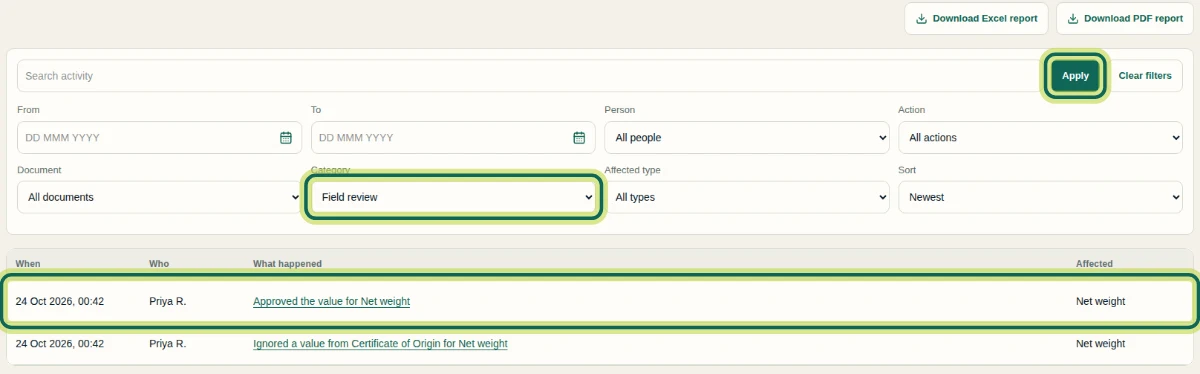
Open Activity in the shipment menu. Set Category to Field review, then select Apply. The example shows an approval and an ignored document value for Net weight. Narrow the list with Search activity, From, To, Person, Action, Document or Affected type; use Sort to change the order and Clear filters to reset. Activity needs separate audit access, so field access alone may not provide it. Download Excel report and Download PDF report include the complete permitted trail and do not apply the screen filters.
Step 6 Open the recorded decision
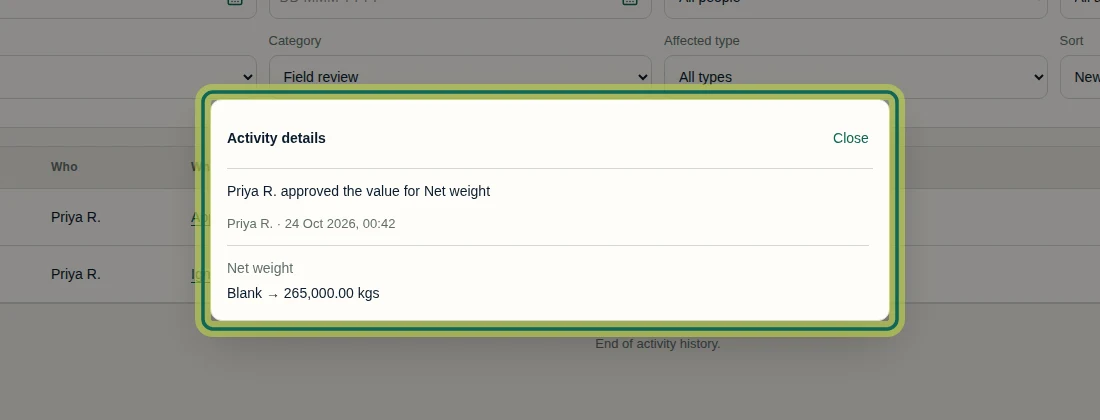
In Activity, select the linked Approved the value for Net weight row to open Activity details. Check the person, time and recorded change. Here, Blank → 265,000.00 kgs records an approval with no earlier approved value; it does not mean the source document was blank. Select Close to return. You can now trace the recorded decision; next, return to Viewer to inspect its source document.
Step 7
Expected result
You can inspect the selected document version, interpret its extracted-value comparison, and trace a permitted review decision to its actor, time and recorded approval value.
Was this helpful?
If something did not work as described, tell us and we will help.