Use the Evidence Viewer
Inspect an uploaded document version, its pages and where each value came from.
- ForEveryone who checks shipment documents
- Task timeAbout 3 min
- Video0:58
- Last checked2026-10-22
Overview
The Viewer shows the exact document version a value came from, with highlights where the source location is known.
What you'll learn
- Open a document version in the Viewer
- Zoom, fit and highlight
- Download this document or the latest set
- Hand off to detailed review
Before you begin
- A shipment with uploaded documents Upload Shipping Documents
Step-by-step guide
Open the Viewer
Open the shipment and select Viewer in the shipment menu.
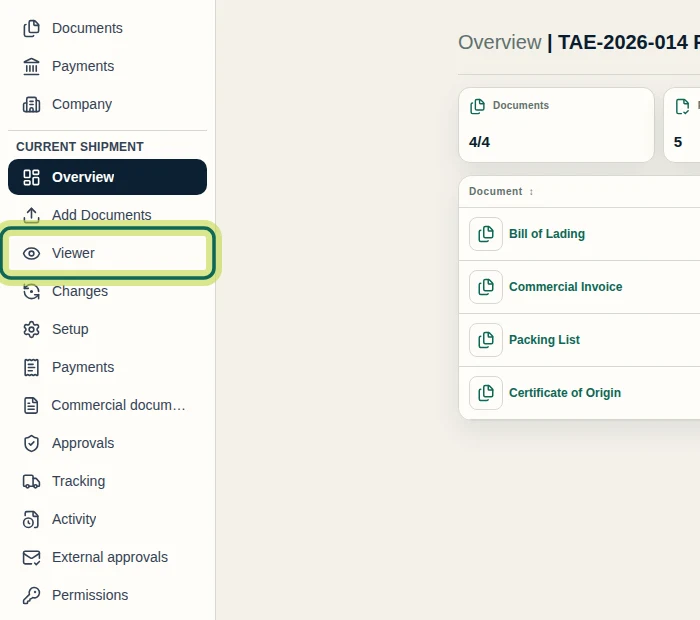
Step 1 Choose a document and move around it
Choose a document from the list at the top; each one is shown with its version. Use Prev / Next, Zoom - / Zoom + and Fit to width to move around the page.

Step 2 Check the fields
Below the document, Fields lists every value Shiplete read, each with its status: Conflict, Needs review, Ready to approve, Approved or Not available.
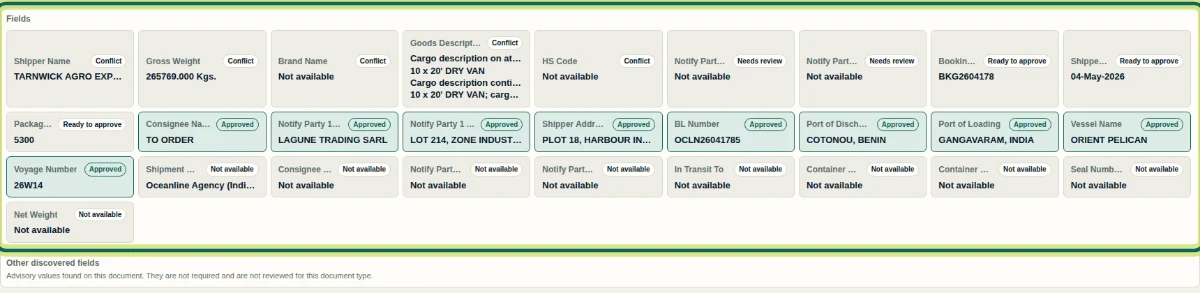
Step 3 Highlight where values were found
Tick Highlight to outline every value Shiplete read on the page.
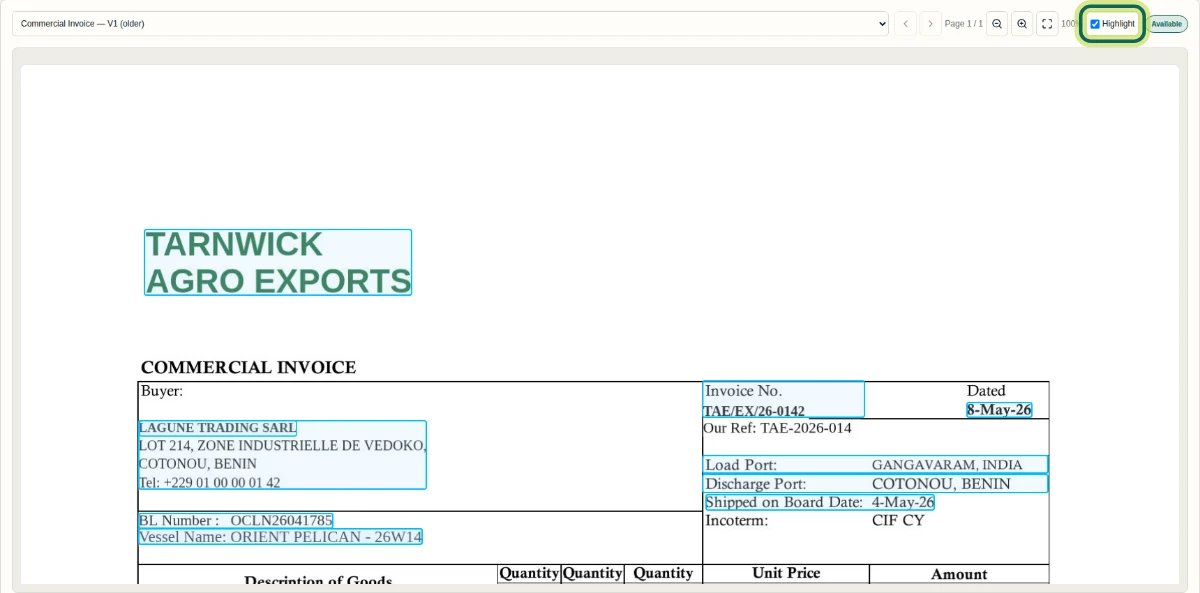
Step 4 See earlier versions
When a document has been replaced, the list shows the latest version, and earlier versions stay available marked (older).

Step 5 Download
Select Download, then This document or Full latest set.
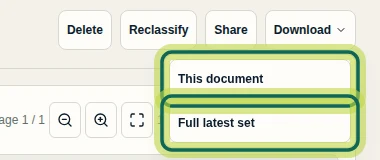
Step 6
Expected result
You can find where a value appears in its source document.
Next tutorial
Was this helpful?
If something did not work as described, tell us and we will help.