How to Create and Use Reusable Snippets
Save reusable wording in Snippets Master, find it by alias, and add it to a contract with Apply and Save draft.
- ForCompany users who maintain reusable wording and prepare contracts.
- Task timeAbout 3 min
- Video2:20
- Last checked2026-10-23
Overview
Create a snippet with a category, optional label and alias, then choose it from a saved contract’s Conditions library. Apply the condition and save the document draft to keep the inserted wording.
What you'll learn
- Create a snippet with the required Category and Snippet Text
- Save an optional alias and find the snippet in Snippets Master
- Choose saved wording from a contract’s Conditions library
- Apply the condition, save the draft and check Clauses
Before you begin
- Company Owner/Admin authority, or permission to view and change Company Masters.
- An existing saved contract with Conditions support, and permission to edit and save it. Create Your First Contract
- Permission to view Company Masters when loading the contract’s clause library.
Step-by-step guide
Create the snippet
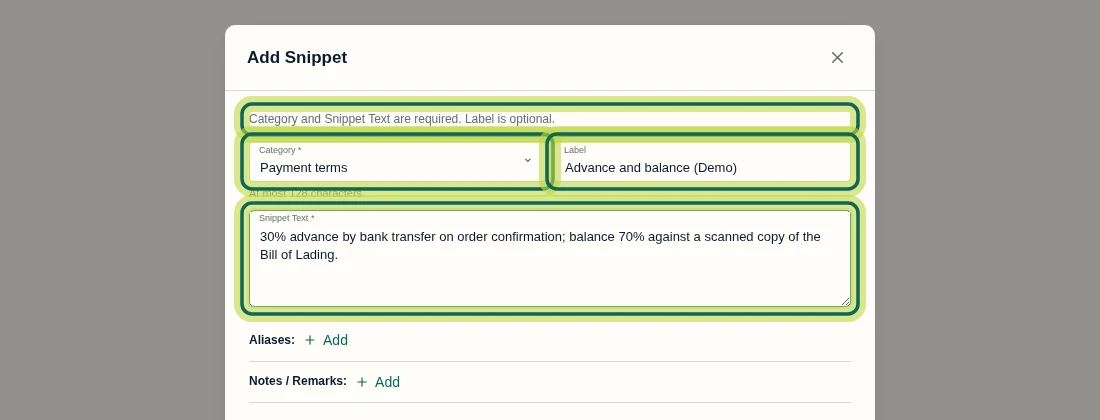
Under Company, open Snippets Master and select Add Snippet. Enter a Category and Snippet Text; both are required. Label is optional, but gives you a recognizable name when choosing the snippet later. For the recorded example, use category Payment terms, label Advance and balance (Demo), and text: “30% advance by bank transfer on order confirmation; balance 70% against a scanned copy of the Bill of Lading.” Category accepts up to 128 characters. Creating a snippet requires permission to view and change Company Masters.
Step 1 Add an optional alias and save the snippet
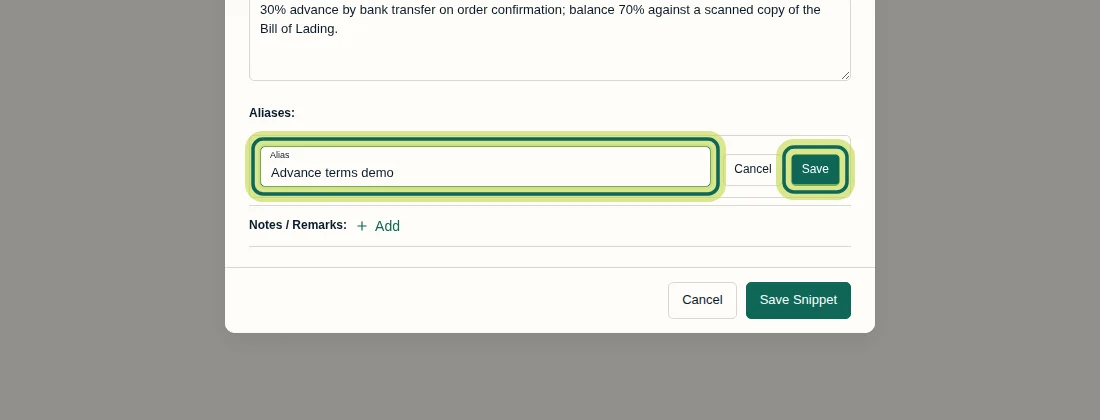
In the Add Snippet form, select Add beside Aliases: if you want an additional search name. Enter Advance terms demo in Alias, then select the Save beside that field. Finish the whole form with Save Snippet. The alias entry’s Save does not save the complete snippet. Confirm Snippet saved. above the list.
Step 2 Find the snippet in Snippets Master
In Snippets Master, enter Advance terms demo in Search snippets…. The recorded snippet remains in the results because Masters search includes aliases. You can also search category, label, snippet text and notes here. This broader search is specific to Masters; the document’s clause library searches names and text only.

Step 3 Choose the snippet in a saved contract
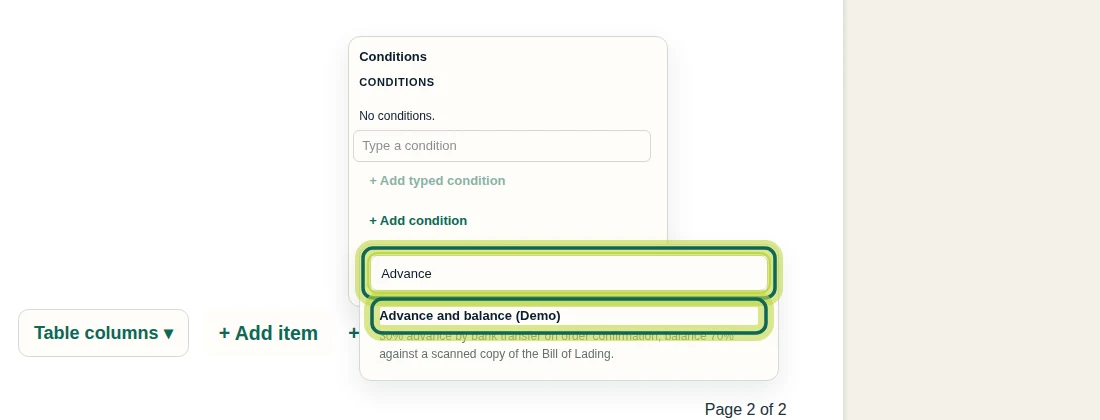
Open an existing saved contract in Commercial documents. In this example, go to page two and select + Add conditions, then + Add condition in the Conditions popup. Search for Advance and select Advance and balance (Demo) after checking its wording. Search the clause library by name or text, not category or alias. Each snippet can be added once per document through the library. If a newly created snippet is missing, reopen or reload Commercial documents to refresh the library. You need permission to view Company Masters and edit the document.
Step 4 Apply the selected condition
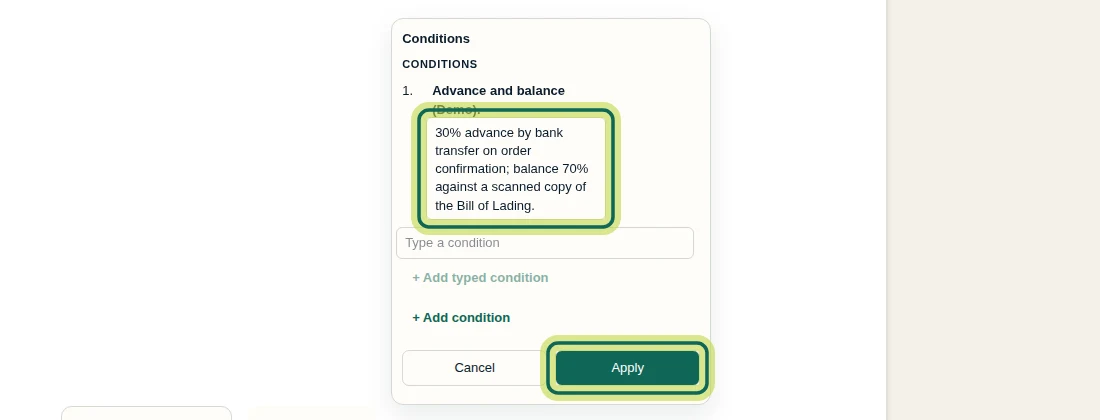
In Conditions, review the selected snippet’s name and wording. Select Apply to transfer the popup changes into the contract draft. This step does not save the document; finish with Save draft in the document header.
Step 5 Save the contract changes
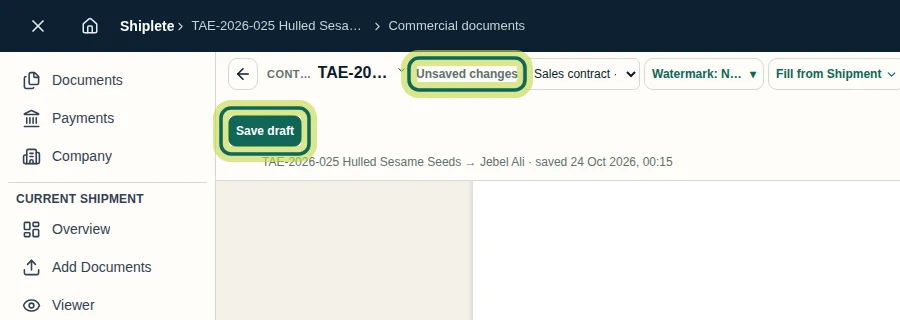
After applying the condition, check for Unsaved changes in the document header. Select Save draft to save the contract. Wait for the header to show Saved before checking the saved result. Apply and Save draft are separate actions.
Step 6 Check the saved wording
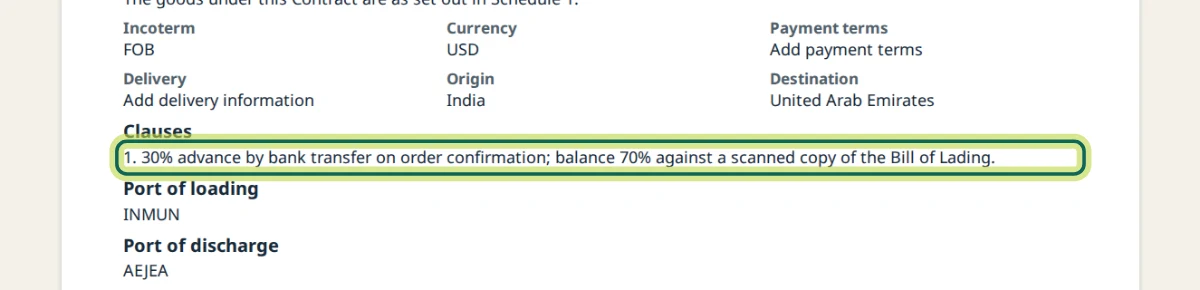
After saving, find Clauses in the contract and confirm that the inserted wording is present. In this example it appears on page one. Selecting a library snippet keeps the version chosen for that document; later edits to the snippet do not automatically refresh its inserted wording. The snippet supplies text and does not create a payment schedule. Next, use Preview to check the document’s appearance.
Step 7
Expected result
A reusable snippet is saved in Snippets Master, and its wording is saved under Clauses in a contract.
Was this helpful?
If something did not work as described, tell us and we will help.