How to Set Up Expected Payments for a Shipment
Set a shipment’s expected amount and explicit due-date rule in Setup, then check the result in Payments and Overview.
- ForShipment users with permission to view and edit Setup and to view Finance, including authorized Shipment Admins.
- Task timeAbout 3 min
- Video2:13
- Last checked2026-10-23
Overview
Use Setup to check the commercial parties, enter an expected amount and currency, and choose a due-date rule. This seller example changes a fixed deadline to 45 days after arrival and checks the saved expectation in Payments and Overview. Payment terms are descriptive text; saving Setup records no money.
What you'll learn
- Check the company and buyer required for a sales payment expectation
- Enter an expected amount and currency separately from payment-terms text
- Choose Days after arrival and check the saved due date
- Distinguish the expected amount from Paid / Received in Payments
- Confirm Next due on Overview
Before you begin
- An active shipment with valid saved company, commercial role and required buyer or seller selections in Setup Enter Shipment Setup
- Permission to view and edit shipment Setup and permission to view Finance; a Finance-only amount editor cannot edit these terms or due-date controls
- An ETA available for the arrival-based due-date example
Step-by-step guide
Open shipment Setup
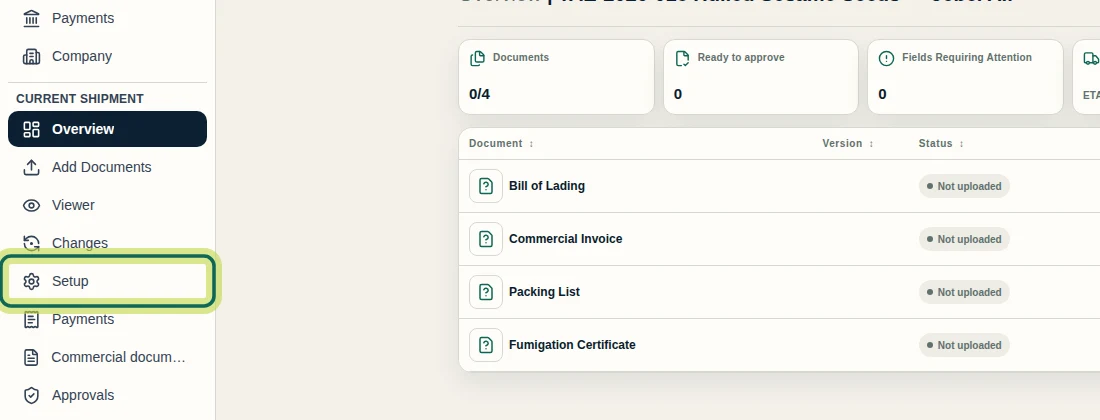
Open the shipment and select Setup under Current shipment. You need permission to view and edit shipment Setup, plus permission to view Finance for the Payments check later. Archived shipments are read-only.
Step 1 Check the company and buyer
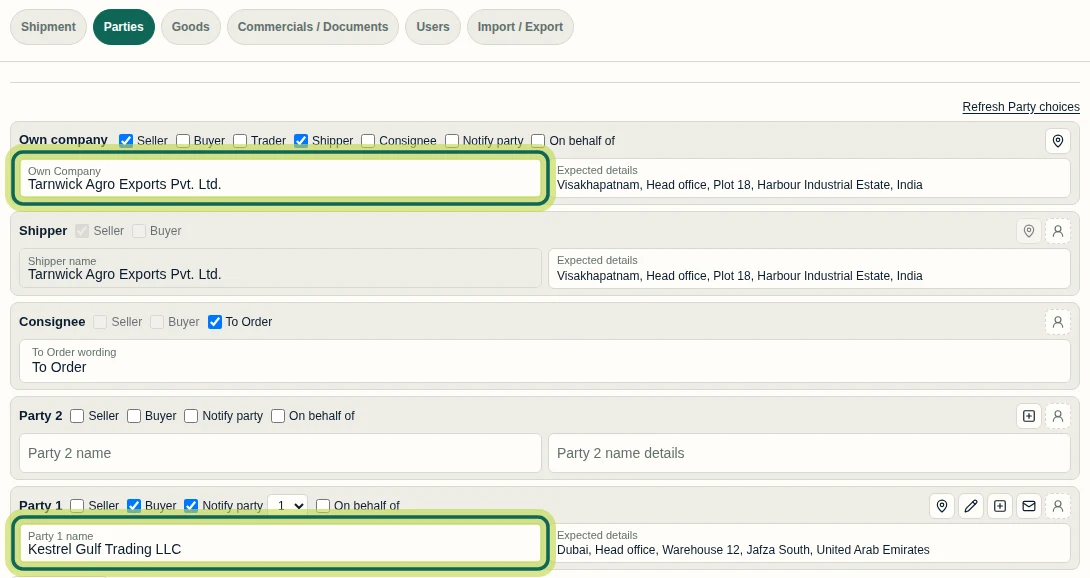
In Setup, select Parties. Confirm the saved Own company, its commercial role and the required buyer or seller. This seller example already has Tarnwick Agro Exports Pvt. Ltd. as Seller and Kestrel Gulf Trading LLC as Buyer. Save valid company and party selections before setting the payment expectation. The commercial role determines whether Sales invoice, Purchase invoice or both are available; this example shows Sales invoice.
Step 2 Enter the amount and describe the terms
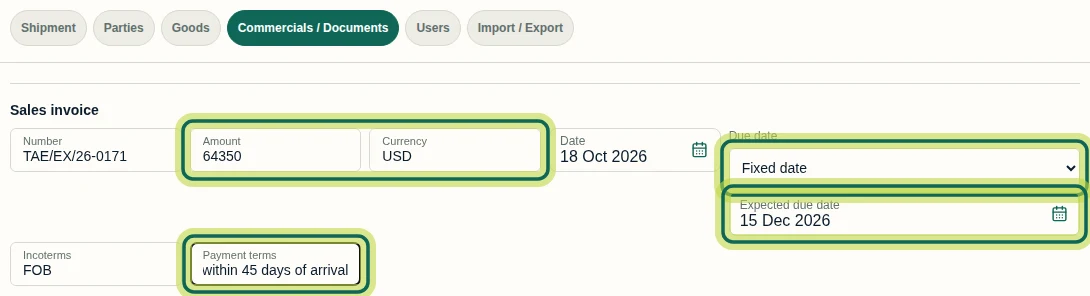
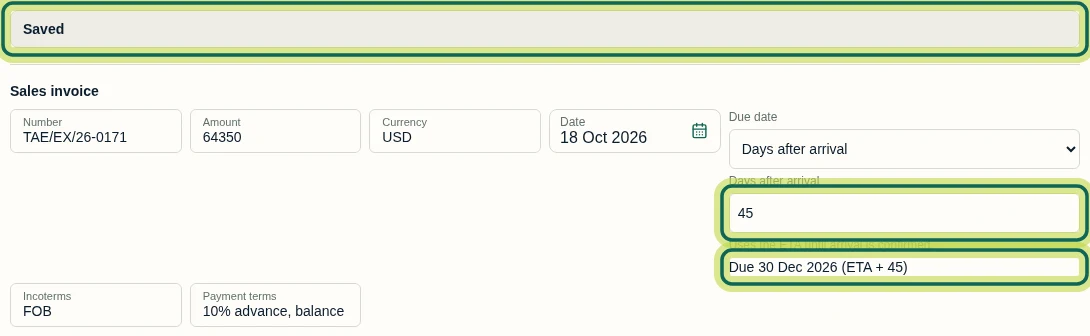
In Setup, select Commercials / Documents. Under Sales invoice, enter or check Number, Amount, Currency and Date. This example already contains 64,350 US dollars dated 18 Oct 2026. Enter the agreed wording in Payment terms; the recording uses ‘10% advance, balance 90% within 45 days of arrival’. The narrow field shows only part of that text at a time. Payment terms are descriptive: percentage wording does not create instalments or set the due date. There is one expected amount and one due-date rule per invoice side. For a fixed deadline, select Fixed date under Due date and enter Expected due date.
Step 3 Choose an arrival-based due date
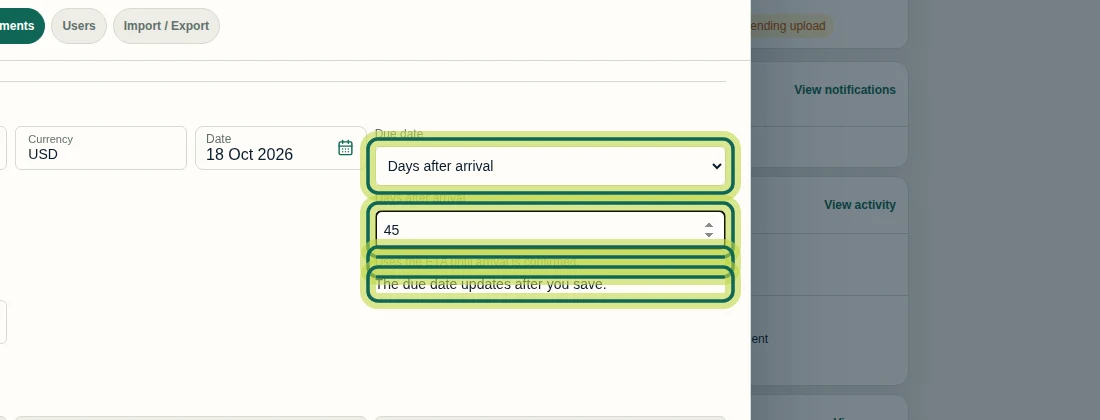
For an arrival-based deadline, change Due date to Days after arrival, then enter a whole number from 0 to 365 in Days after arrival. This example uses 45. The rule uses the ETA until arrival is confirmed. The message The due date updates after you save. means the edited rule still needs saving.
Step 4 Save and check the calculated date
Select Save in Setup. Allow a moment for the date to finish updating, then check Saved and the resolved due date. With ETA 15 Nov 2026 and 45 days after arrival, this example resolves to Due 30 Dec 2026 (ETA + 45). Saving Setup does not issue a Finance invoice or record money paid or received. Date formatting follows your company’s preferences.
Step 5 Check expected and received amounts in Payments
Select Save & Close in Setup, then select Payments under Current shipment. Check Sale · Kestrel Gulf Trading LLC and the From Shipment Setup row. Here, Invoiced, Invoice outstanding and Receivable net due are 64,350.00 US dollars, while Paid / Received is 0.00 US dollars. Due shows 45 days after arrival (ETA). These values show an expectation with no money recorded. If an approved Finance invoice already controls the amount, later Setup amount edits do not replace that invoice amount or create a second obligation.

Step 6 Confirm the next due date on Overview
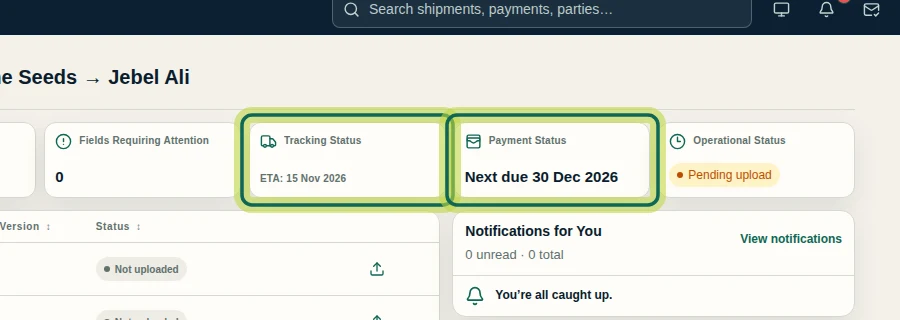
Select Overview under Current shipment and check Payment Status. This example now shows Next due 30 Dec 2026. The payment expectation and explicit arrival-based due-date rule are saved. For the next related task, learn to update the shipment’s ETA through Tracking Status; dependent dates can take a moment to refresh.
Step 7
Expected result
The shipment has a saved expected amount and an explicit due-date rule, with a matching Setup-sourced row in Payments. In this example, 64,350 US dollars is due 30 Dec 2026 using ETA plus 45 days, Paid / Received remains 0.00 US dollars, and Overview shows the new Next due date.
Next tutorial
Was this helpful?
If something did not work as described, tell us and we will help.